> ## Documentation Index
> Fetch the complete documentation index at: https://docs.apten.ai/llms.txt
> Use this file to discover all available pages before exploring further.
# Actions
> Everything an automation step can do — create and update leads, send messages, and look up CRM records.
## Overview
Actions are the steps that do the work in an automation. They come in two groups in the **Add step** dialog:
* **Apten Actions** — operate on leads in Apten.
* **CRM Actions** — look up a record in your connected CRM and expose its fields to later steps.
### The find-then-act pattern
Most Apten actions need an **Apten lead ID** to know which lead to operate on. The standard pattern is to start with a **Find Lead** step, then reference its output in later steps: type **/** in the **Apten lead ID** field and pick the Find Lead step's **Apten lead ID** output. A **Create Lead** step works the same way — later steps can reference the ID of the lead it just created.
## Apten Actions
### Find Lead
Looks up an existing Apten lead by CRM record ID, Apten lead ID, or phone number. Provide at least one; if you set multiple, they're tried in order — **Apten lead ID → CRM record ID → Phone** — and the first match wins, which makes a useful fallback chain.
Outputs include whether a lead was found, the Apten lead ID, name, phone, email, customer profile, and status flags such as whether the lead has replied, is marked hot, or has unsubscribed. Pair it with a [Filter step](/automations/control-steps) on the **Lead found?** output to stop runs for unknown leads.
### Create Lead
Creates a new lead in Apten and starts outreach. Required fields: **First name**, **Phone**, and **Customer profile**. Optional fields include **Last name**, **Email**, and **Link to CRM record** — set the link so the new lead syncs back to the CRM record that triggered the run (typically `{{trigger.Id}}`).
Under **Advanced** you can also set:
* **Time zone** — an IANA identifier like `America/New_York`
* **Scheduled import time** — defer Apten's first outbound message until a future timestamp (up to 365 days out)
* **Outbound phone** — override the phone number Apten texts from
* **Custom fields** — extra key-value data stored on the lead
The keys `integrationSource`, `salesforceId`, and `dynamicsId` are reserved — use the **Link to CRM record** field instead.
Creating a lead follows the same rules as every other import path: numbers on your Do Not Contact list are rejected, duplicates by phone number are rejected, and your organization's lead quota applies.
### Turn Off Lead
Pauses outreach for a lead — Apten stops sending messages until the lead is turned back on. Takes an **Apten lead ID** (not a CRM record ID).
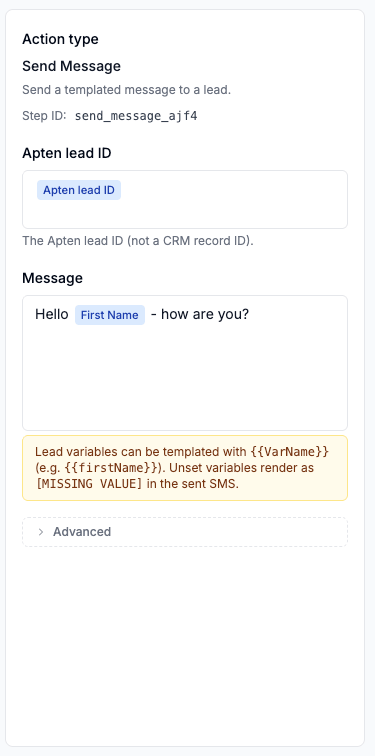
### Send Message
Sends a text message to a lead. Fields:
* **Apten lead ID** — the lead to message.
* **Message** — the message body. Besides **/** references to trigger and step data, you can template lead variables with double braces, e.g. `{{firstName}}`. Variables with no value render as `[MISSING VALUE]` in the sent message, so make sure the fields you reference are set.
 Under **Advanced**:
* **Scheduled time** — send at a future time instead of immediately
* **Send when lead is off** — deliver even if the lead is currently turned off
* **Schedule follow-ups** — have the AI continue following up after this message
* **Override business hours** — send outside the lead's business hours; otherwise delivery waits for the next window
Messages from automations go through the same compliance checks as all Apten outreach — unsubscribed leads and Do Not Contact numbers are never messaged.
### Switch Profile
Moves a lead to a different **Customer profile**. Under **Advanced** you can **Clear memory** (start the conversation fresh) and **Send a message after switch**, optionally with a **Delay before message** in hours or minutes.
### Add Context
Appends information to a lead for the AI to use. Provide at least one of:
* **Context** — free-text background, e.g. notes from the CRM record
* **Command** — an instruction for the AI, e.g. "Schedule a follow-up for tomorrow at 9am."
* **Custom fields** — key-value data stored on the lead
### Register DNC
Adds a phone number to your organization's Do Not Contact list, blocking all future outreach to it across every lead. A common pattern is to reference the **Phone** output of a Find Lead step.
Registering a number on the DNC list blocks outreach to that number but does not turn the lead off. Pair **Register DNC** with a **Turn Off Lead** step to do both.
## CRM Actions
### Find CRM Record
Looks up a single record of any object in your connected CRM — for example, the Account behind the Contact that triggered the run, or a lead's next appointment — and exposes its fields to later steps.
* **Object** — the CRM object to search.
* **Search by field** / **Search value** — the record is looked up where this field equals the value; typically an ID or lookup field referencing the trigger record, e.g. `{{trigger.AccountId}}`.
* **Conditions (optional)** — extra conditions the record must meet on top of the search match.
* **If multiple match, pick the record with…** — a tie-breaker: choose a field and **lowest** or **highest** (for example, lowest start date = the soonest upcoming appointment).
The step's outputs are the found record's fields, plus a **Record found?** flag you can filter or branch on.
The CRM is fixed when you add the step (each connected CRM appears as its own entry in the **Add step** dialog, e.g. **Find Salesforce Record**). To target a different CRM, delete the step and add the other variant.
Under **Advanced**:
* **Scheduled time** — send at a future time instead of immediately
* **Send when lead is off** — deliver even if the lead is currently turned off
* **Schedule follow-ups** — have the AI continue following up after this message
* **Override business hours** — send outside the lead's business hours; otherwise delivery waits for the next window
Messages from automations go through the same compliance checks as all Apten outreach — unsubscribed leads and Do Not Contact numbers are never messaged.
### Switch Profile
Moves a lead to a different **Customer profile**. Under **Advanced** you can **Clear memory** (start the conversation fresh) and **Send a message after switch**, optionally with a **Delay before message** in hours or minutes.
### Add Context
Appends information to a lead for the AI to use. Provide at least one of:
* **Context** — free-text background, e.g. notes from the CRM record
* **Command** — an instruction for the AI, e.g. "Schedule a follow-up for tomorrow at 9am."
* **Custom fields** — key-value data stored on the lead
### Register DNC
Adds a phone number to your organization's Do Not Contact list, blocking all future outreach to it across every lead. A common pattern is to reference the **Phone** output of a Find Lead step.
Registering a number on the DNC list blocks outreach to that number but does not turn the lead off. Pair **Register DNC** with a **Turn Off Lead** step to do both.
## CRM Actions
### Find CRM Record
Looks up a single record of any object in your connected CRM — for example, the Account behind the Contact that triggered the run, or a lead's next appointment — and exposes its fields to later steps.
* **Object** — the CRM object to search.
* **Search by field** / **Search value** — the record is looked up where this field equals the value; typically an ID or lookup field referencing the trigger record, e.g. `{{trigger.AccountId}}`.
* **Conditions (optional)** — extra conditions the record must meet on top of the search match.
* **If multiple match, pick the record with…** — a tie-breaker: choose a field and **lowest** or **highest** (for example, lowest start date = the soonest upcoming appointment).
The step's outputs are the found record's fields, plus a **Record found?** flag you can filter or branch on.
The CRM is fixed when you add the step (each connected CRM appears as its own entry in the **Add step** dialog, e.g. **Find Salesforce Record**). To target a different CRM, delete the step and add the other variant.