> ## Documentation Index
> Fetch the complete documentation index at: https://docs.apten.ai/llms.txt
> Use this file to discover all available pages before exploring further.
# Control Steps
> Steps that shape the flow of a run — stop it with a Filter or split it into paths with a Branch.
## Overview
**Control** steps shape the flow of a run instead of performing work:
* **Filter** — stop the run unless conditions match.
* **Branch** — split the automation into multiple paths, each with its own rules and steps.
Both use the same condition editor described [below](#the-condition-editor).
## Filter
A Filter step checks its conditions when the run reaches it. If they match, the run continues to the next step; if not, the run stops there with the status **Halted**.
Filters can reference anything available at that point in the run — trigger fields and the outputs of earlier steps. A common pattern is a **Find Lead** step followed by a Filter on its **Lead found?** output, so the rest of the automation only runs for leads that exist in Apten.
**Halted is not an error.** It means a Filter (or Branch) decided the run shouldn't continue — exactly what you built it to do. Halted runs are listed on the [Runs](/automations/runs) page so you can confirm your filters behave as expected.
## Branch
A Branch step splits the automation into **2 to 5 branches**. Each branch has its own **Branch rules** (conditions) and its own chain of steps.
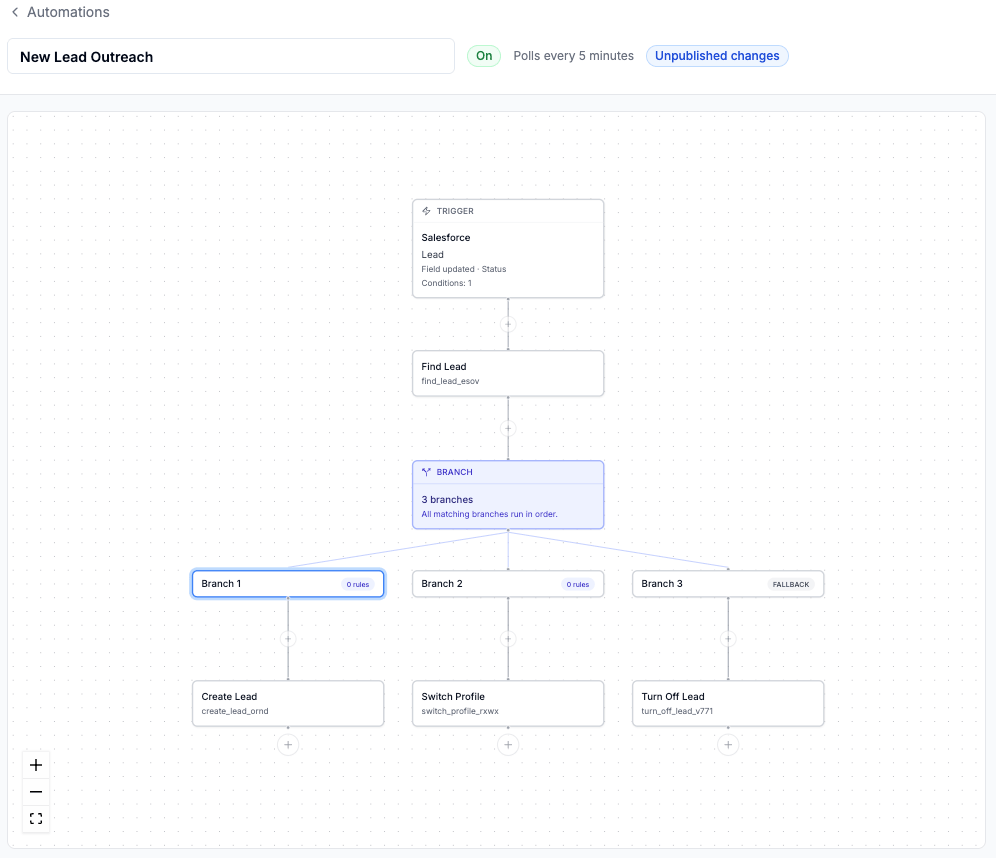 How branches are evaluated when a run arrives:
* **Every branch whose rules match runs**, one after another, in the order the branches are defined. Branches are not mutually exclusive — if a record matches two branches, both run.
* One branch can be marked as the **Fallback branch**. It has no rules and runs only when no other branch matched.
* If no branch matches and there is no fallback, the run stops with status **Halted**.
* If a step inside one branch fails, the other matching branches still run, but the run's overall status is **Failed**.
A few structural rules:
* A Branch is always the **last step** of an automation — branches don't merge back together, and each branch runs to its own end.
* An automation can contain **one Branch step**, with up to **10 steps per branch**.
Need "if A do X, otherwise do Y"? Use two branches: one with your rules, plus a **Fallback branch** for everything else.
## The Condition Editor
Conditions appear throughout Automations — trigger **Conditions**, the **Watched field filter**, **Filter conditions**, **Branch rules**, and the optional conditions on **Find CRM Record** — and they all work the same way.
Each condition is a row of three parts:
1. **Field** — searchable dropdown of available fields
2. **Operator** — `=`, `≠`, `contains`, `>`, `<`, `in`, `not in`, `is set`, `is not set` (the list adapts to the field's type)
3. **Value** — a typed input matching the field: text, number, Yes/No, a picklist of the field's options, or a date picker. `in` / `not in` accept multiple values.
With more than one condition, choose the match mode: **All conditions** (every condition must match) or **Any condition** (at least one must match).
### Relative dates
On **Filter**, **Branch**, and **Find CRM Record** conditions, date fields offer two value modes:
* **Specific date** — a fixed date or time
* **Relative to trigger** — an offset from when the run fired, e.g. *3 days after trigger* or *2 hours before trigger*. Use `>` and `<` with relative dates, e.g. `AppointmentDate < 2 days after trigger` to mean "within the next 2 days."
Trigger conditions don't support relative dates — they use fixed values only.
Nested condition groups aren't supported — a single group is always all-AND or all-OR. For logic like "(A and B) or (C and D)", use a Branch with one branch per group, or split into two automations.
How branches are evaluated when a run arrives:
* **Every branch whose rules match runs**, one after another, in the order the branches are defined. Branches are not mutually exclusive — if a record matches two branches, both run.
* One branch can be marked as the **Fallback branch**. It has no rules and runs only when no other branch matched.
* If no branch matches and there is no fallback, the run stops with status **Halted**.
* If a step inside one branch fails, the other matching branches still run, but the run's overall status is **Failed**.
A few structural rules:
* A Branch is always the **last step** of an automation — branches don't merge back together, and each branch runs to its own end.
* An automation can contain **one Branch step**, with up to **10 steps per branch**.
Need "if A do X, otherwise do Y"? Use two branches: one with your rules, plus a **Fallback branch** for everything else.
## The Condition Editor
Conditions appear throughout Automations — trigger **Conditions**, the **Watched field filter**, **Filter conditions**, **Branch rules**, and the optional conditions on **Find CRM Record** — and they all work the same way.
Each condition is a row of three parts:
1. **Field** — searchable dropdown of available fields
2. **Operator** — `=`, `≠`, `contains`, `>`, `<`, `in`, `not in`, `is set`, `is not set` (the list adapts to the field's type)
3. **Value** — a typed input matching the field: text, number, Yes/No, a picklist of the field's options, or a date picker. `in` / `not in` accept multiple values.
With more than one condition, choose the match mode: **All conditions** (every condition must match) or **Any condition** (at least one must match).
### Relative dates
On **Filter**, **Branch**, and **Find CRM Record** conditions, date fields offer two value modes:
* **Specific date** — a fixed date or time
* **Relative to trigger** — an offset from when the run fired, e.g. *3 days after trigger* or *2 hours before trigger*. Use `>` and `<` with relative dates, e.g. `AppointmentDate < 2 days after trigger` to mean "within the next 2 days."
Trigger conditions don't support relative dates — they use fixed values only.
Nested condition groups aren't supported — a single group is always all-AND or all-OR. For logic like "(A and B) or (C and D)", use a Branch with one branch per group, or split into two automations.