> ## Documentation Index
> Fetch the complete documentation index at: https://docs.apten.ai/llms.txt
> Use this file to discover all available pages before exploring further.
# Automations Overview
> Build CRM-triggered workflows that create leads, send messages, and manage outreach in Apten automatically.
## Overview
Automations connect your CRM to Apten. When something happens in your CRM — a record is created, or a field changes — an automation can respond automatically: create a lead in Apten, send a message, switch a lead's customer profile, pause outreach, and more.
Common use cases include:
* A new lead lands in Salesforce → create the lead in Apten and start outreach
* An opportunity's stage changes to **Closed Lost** → switch the lead to a re-engagement profile
* A contact is marked do-not-call in your CRM → add the number to your Do Not Contact list and turn the lead off
* An appointment is booked → send the lead a confirmation text with details pulled from the CRM record
Every automation has two parts:
1. **A Trigger** — the CRM event that starts a run. Apten polls your connected CRM on a schedule you control and fires the automation for each matching record. See [Triggers](/automations/triggers).
2. **Steps** — an ordered list of things to do, built visually on a canvas. Steps can act in Apten ([Actions](/automations/actions)), look up records in your CRM, or control the flow with [Control steps](/automations/control-steps).
 ## Key Concepts
| Concept | What it means |
| -------------- | ----------------------------------------------------------------------------------------------------------------------------------------------------------------------------------------------- |
| **Automation** | One trigger plus an ordered list of steps. |
| **Trigger** | The CRM event that starts a run — a new record, or a change to a watched field. |
| **Step** | A single unit of work. Steps come in three kinds: **Apten Actions** (act on leads in Apten), **CRM Actions** (look up a record in your CRM), and **Control** steps (**Filter** and **Branch**). |
| **Run** | One execution of an automation for one triggering record. Every run is logged on the **Runs** page with per-step detail. |
| **Draft** | Your working copy. Edits autosave to a draft and have no effect until you click **Publish**. |
| **Published** | The live version of the automation — the one that actually runs. |
| **On / Off** | Whether the published automation is actively watching your CRM. Toggle it from the automation's page. |
## Prerequisites
* **Admin access.** Only organization admins can see and manage Automations. Other roles do not see the page.
* **A connected CRM.** Triggers and CRM actions require a connected **Salesforce**, **Salesforce Sandbox**, or **Microsoft Dynamics** integration. Connect one on the **Integrations** page first — see [Salesforce](/integrations/salesforce) or [Microsoft Dynamics](/integrations/dynamics).
Disconnecting a CRM on the Integrations page turns off every automation that depends on that connection. You'll need to re-link and re-enable them after reconnecting.
## Navigating Automations
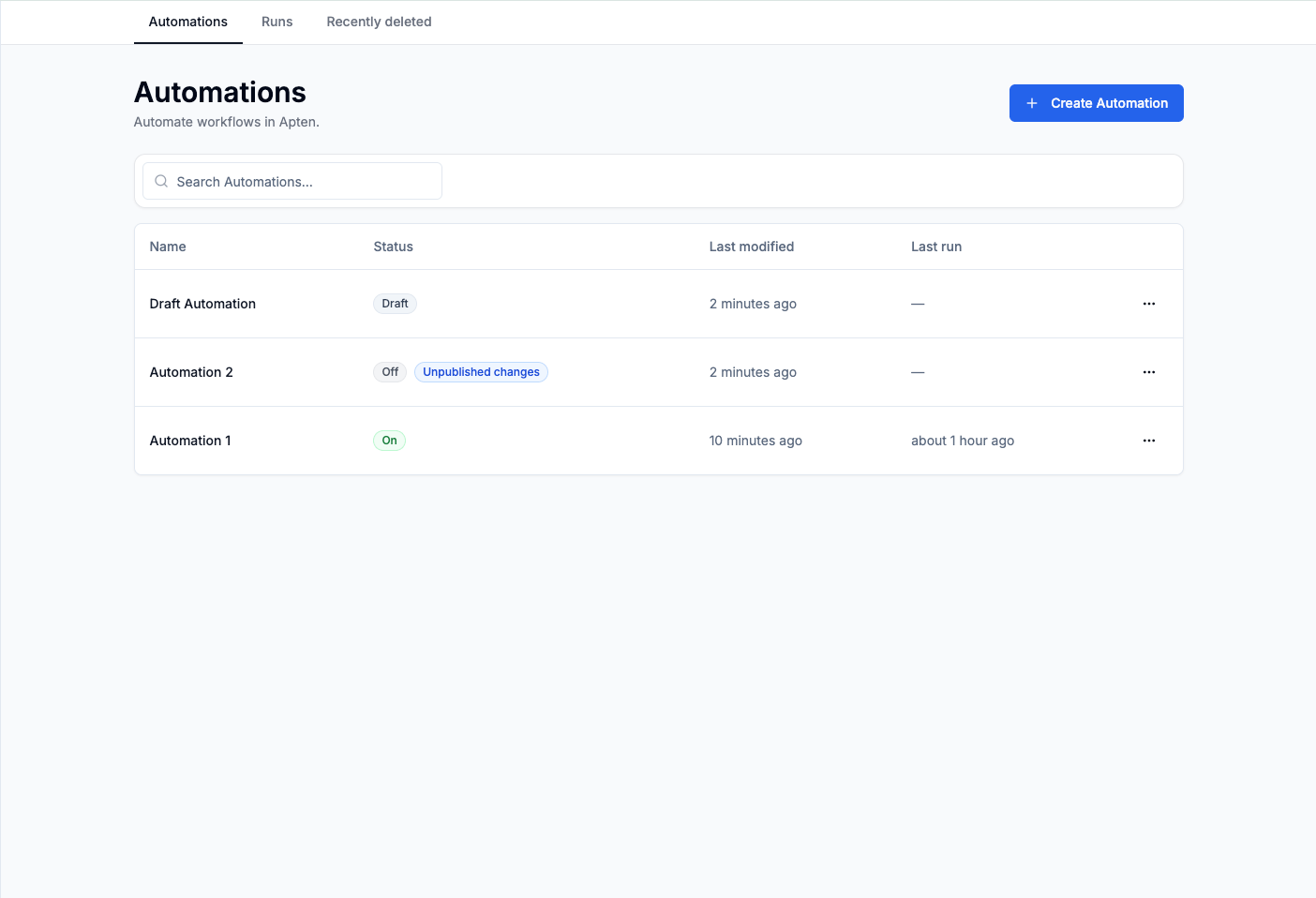
Open **Automations** in the sidebar. The page has three tabs:
* **Automations** — every automation in your organization, with its status (**Draft**, **Off**, **Activating…**, or **On**), last-modified time, and last run. Click **Create Automation** to start a new one.
* **Runs** — the execution history across all automations, filterable by automation, status, and time range. See [Runs & Troubleshooting](/automations/runs).
* **Recently deleted** — deleted automations stay restorable here for 30 days.
## Learn More
Create, publish, and manage an automation end to end.
New record and Field updated triggers, conditions, and polling.
Everything an automation can do in Apten and in your CRM.
Add conditions and split an automation into multiple paths.
Inspect run history and resolve failed steps.
## Key Concepts
| Concept | What it means |
| -------------- | ----------------------------------------------------------------------------------------------------------------------------------------------------------------------------------------------- |
| **Automation** | One trigger plus an ordered list of steps. |
| **Trigger** | The CRM event that starts a run — a new record, or a change to a watched field. |
| **Step** | A single unit of work. Steps come in three kinds: **Apten Actions** (act on leads in Apten), **CRM Actions** (look up a record in your CRM), and **Control** steps (**Filter** and **Branch**). |
| **Run** | One execution of an automation for one triggering record. Every run is logged on the **Runs** page with per-step detail. |
| **Draft** | Your working copy. Edits autosave to a draft and have no effect until you click **Publish**. |
| **Published** | The live version of the automation — the one that actually runs. |
| **On / Off** | Whether the published automation is actively watching your CRM. Toggle it from the automation's page. |
## Prerequisites
* **Admin access.** Only organization admins can see and manage Automations. Other roles do not see the page.
* **A connected CRM.** Triggers and CRM actions require a connected **Salesforce**, **Salesforce Sandbox**, or **Microsoft Dynamics** integration. Connect one on the **Integrations** page first — see [Salesforce](/integrations/salesforce) or [Microsoft Dynamics](/integrations/dynamics).
Disconnecting a CRM on the Integrations page turns off every automation that depends on that connection. You'll need to re-link and re-enable them after reconnecting.
## Navigating Automations
Open **Automations** in the sidebar. The page has three tabs:
* **Automations** — every automation in your organization, with its status (**Draft**, **Off**, **Activating…**, or **On**), last-modified time, and last run. Click **Create Automation** to start a new one.
* **Runs** — the execution history across all automations, filterable by automation, status, and time range. See [Runs & Troubleshooting](/automations/runs).
* **Recently deleted** — deleted automations stay restorable here for 30 days.
## Learn More
Create, publish, and manage an automation end to end.
New record and Field updated triggers, conditions, and polling.
Everything an automation can do in Apten and in your CRM.
Add conditions and split an automation into multiple paths.
Inspect run history and resolve failed steps.