> ## Documentation Index
> Fetch the complete documentation index at: https://docs.apten.ai/llms.txt
> Use this file to discover all available pages before exploring further.
# Triggers
> Start automations when a record is created or a field changes in your CRM.
## Overview
A trigger defines the CRM event that starts an automation. Apten checks your CRM on a regular polling interval and starts one run for each record that matches your trigger since the last check.
Triggers are available for **Salesforce**, **Salesforce Sandbox**, and **Microsoft Dynamics**. Only CRMs connected on the **Integrations** page can be selected.
 ## Configuring a Trigger
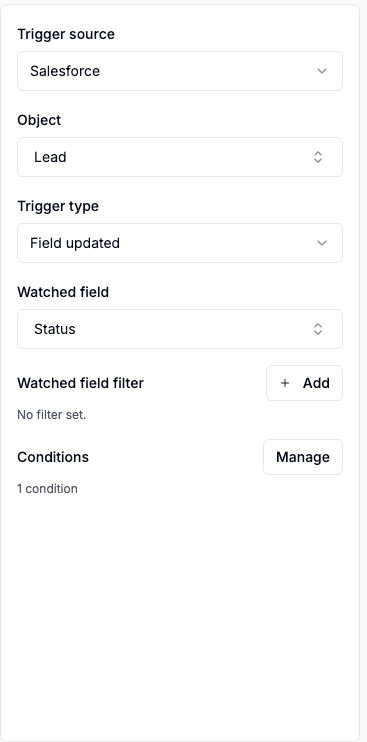
Select the **Trigger** card in the builder and fill in:
* **Trigger source** — the CRM to watch.
* **Object** — the CRM object to watch (for example Lead, Contact, or Opportunity — custom objects are supported).
* **Trigger type** — **New record** or **Field updated**.
### New record
Fires once for each record of the chosen object created **after the automation is turned on**. Existing records never fire it — there is no backfill, so this trigger type activates instantly and works on objects of any size.
### Field updated
Fires when a specific field — the **Watched field** — changes value on any matching record. Two properties make it precise:
* **It fires only on real changes.** Apten tracks the watched field's value per record, so a record being saved without the field changing does not fire the trigger.
* **Repeat transitions fire again.** If a Lead's status moves `Qualified → Lost → Qualified`, the second arrival at `Qualified` fires the trigger a second time.
For Field updated triggers you can also add a **Watched field filter** — a single predicate on the watched field itself. The automation then fires only on transitions where the new value matches the filter (for example, `Status equals Qualified` fires only when the field *becomes* Qualified).
## Trigger Conditions
**Conditions** narrow which records can fire the trigger at all, on any field of the object — for example `LeadSource equals Web` or `State in [CA, NY]`. When you add more than one condition, choose whether **All conditions** or **Any condition** must match.
Trigger conditions are applied inside the CRM query itself, so records outside your conditions are never even polled.
Trigger conditions use fixed values only. Relative date comparisons ("within 7 days of the trigger") are available on [Filter and Branch steps](/automations/control-steps), not on the trigger.
## Poll Interval
By default Apten checks your CRM every **5 minutes**. You can adjust this per automation from the **⋯** menu → **Adjust Poll Interval**, anywhere from **1 to 60 minutes**.
Automations fire on the next poll after a change, not at the instant the change happens in your CRM. With the default interval, expect up to a few minutes between a CRM change and the run appearing on the Runs page.
## Turning an Automation On
What happens when you flip the toggle to **On** depends on the trigger type:
* **New record** triggers activate instantly.
* **Field updated** triggers show **Activating…** while Apten takes an initial snapshot of the watched field across every record matching your conditions. This is what makes exact change detection possible. Activation usually takes seconds to a few minutes depending on how many records match.
### Record limits for Field updated triggers
Because activation snapshots every matching record, Field updated triggers have a size limit on the matching record set:
| CRM | Maximum matching records |
| ------------------------------- | ------------------------ |
| Salesforce / Salesforce Sandbox | **750,000** |
| Microsoft Dynamics | **1,500,000** |
If your object exceeds the limit, activation fails and the automation returns to **Off**. Two ways to resolve it:
1. **Narrow the trigger conditions** so fewer records match — the limit applies to the records matching your conditions, not the whole object.
2. **Use a New record trigger instead** if you only care about records created going forward — New record triggers have no size limit.
## Configuring a Trigger
Select the **Trigger** card in the builder and fill in:
* **Trigger source** — the CRM to watch.
* **Object** — the CRM object to watch (for example Lead, Contact, or Opportunity — custom objects are supported).
* **Trigger type** — **New record** or **Field updated**.
### New record
Fires once for each record of the chosen object created **after the automation is turned on**. Existing records never fire it — there is no backfill, so this trigger type activates instantly and works on objects of any size.
### Field updated
Fires when a specific field — the **Watched field** — changes value on any matching record. Two properties make it precise:
* **It fires only on real changes.** Apten tracks the watched field's value per record, so a record being saved without the field changing does not fire the trigger.
* **Repeat transitions fire again.** If a Lead's status moves `Qualified → Lost → Qualified`, the second arrival at `Qualified` fires the trigger a second time.
For Field updated triggers you can also add a **Watched field filter** — a single predicate on the watched field itself. The automation then fires only on transitions where the new value matches the filter (for example, `Status equals Qualified` fires only when the field *becomes* Qualified).
## Trigger Conditions
**Conditions** narrow which records can fire the trigger at all, on any field of the object — for example `LeadSource equals Web` or `State in [CA, NY]`. When you add more than one condition, choose whether **All conditions** or **Any condition** must match.
Trigger conditions are applied inside the CRM query itself, so records outside your conditions are never even polled.
Trigger conditions use fixed values only. Relative date comparisons ("within 7 days of the trigger") are available on [Filter and Branch steps](/automations/control-steps), not on the trigger.
## Poll Interval
By default Apten checks your CRM every **5 minutes**. You can adjust this per automation from the **⋯** menu → **Adjust Poll Interval**, anywhere from **1 to 60 minutes**.
Automations fire on the next poll after a change, not at the instant the change happens in your CRM. With the default interval, expect up to a few minutes between a CRM change and the run appearing on the Runs page.
## Turning an Automation On
What happens when you flip the toggle to **On** depends on the trigger type:
* **New record** triggers activate instantly.
* **Field updated** triggers show **Activating…** while Apten takes an initial snapshot of the watched field across every record matching your conditions. This is what makes exact change detection possible. Activation usually takes seconds to a few minutes depending on how many records match.
### Record limits for Field updated triggers
Because activation snapshots every matching record, Field updated triggers have a size limit on the matching record set:
| CRM | Maximum matching records |
| ------------------------------- | ------------------------ |
| Salesforce / Salesforce Sandbox | **750,000** |
| Microsoft Dynamics | **1,500,000** |
If your object exceeds the limit, activation fails and the automation returns to **Off**. Two ways to resolve it:
1. **Narrow the trigger conditions** so fewer records match — the limit applies to the records matching your conditions, not the whole object.
2. **Use a New record trigger instead** if you only care about records created going forward — New record triggers have no size limit.