> ## Documentation Index
> Fetch the complete documentation index at: https://docs.apten.ai/llms.txt
> Use this file to discover all available pages before exploring further.
# Contact Card
> Let Apten send your company contact card over SMS so leads can save your number
## Overview
The **Send Contact Card** tool lets Apten share your business contact as a vCard over SMS (MMS). Leads can open it and save your company name, phone number, and optional photo into their phone’s contacts.
Use it when a lead asks for your number, email, or how to reach you — without pasting a long block of contact text into the chat.
## Enable Send Contact Card
Contact cards are **opt-in per profile**. Add the tool under **Global Tools** on the profile flowchart:
1. Go to **Build & Test** and open the customer profile
2. Click **Edit Profile**
3. On the flowchart, open the **Tools** section
4. Under **Global Tools**, add **Send Contact Card**

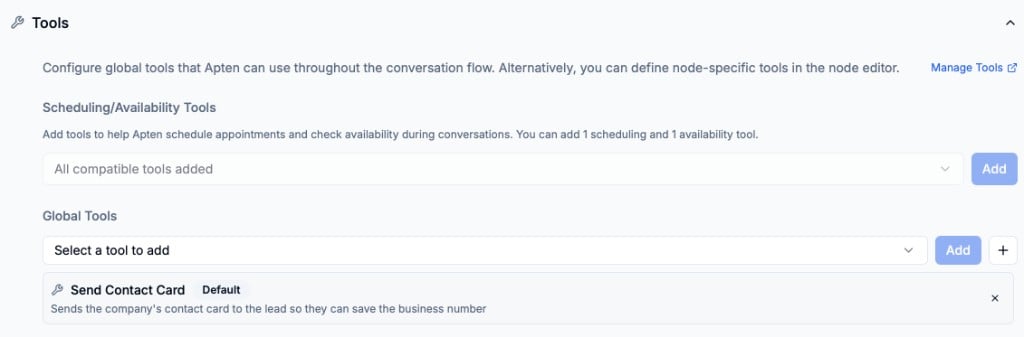 Apten only sends a contact card when this tool is enabled for the profile.
Leads who have opted out of SMS will not receive one.
## Optional: Contact Card Image
Each profile can include a photo on the contact card. If you skip this, Apten still sends the card with your company name and phone number.
1. In the profile editor, open **Settings**
2. Find **Contact Card Image** (under the profile description)
3. Upload a **PNG, JPG, or GIF** up to **200KB**
4. Publish the profile when you’re ready
Apten only sends a contact card when this tool is enabled for the profile.
Leads who have opted out of SMS will not receive one.
## Optional: Contact Card Image
Each profile can include a photo on the contact card. If you skip this, Apten still sends the card with your company name and phone number.
1. In the profile editor, open **Settings**
2. Find **Contact Card Image** (under the profile description)
3. Upload a **PNG, JPG, or GIF** up to **200KB**
4. Publish the profile when you’re ready
 Keep the image small (200KB max). Larger files can fail over MMS. WebP is not
supported for contact cards.
## How It Works in Conversation
When a lead asks for contact info and the tool is enabled, Apten can send the company contact card, then reply with a short acknowledgment (for example, that the card was sent).
The card is built from your organization and profile settings (company name, business phone, and optional contact card image).
## What You See in the Dashboard
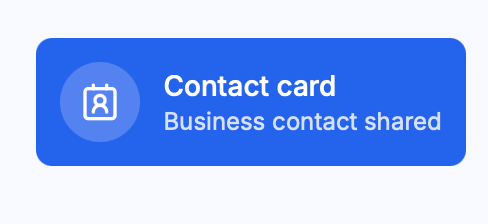
Sent contact cards appear in the conversation timeline as a **Contact card** chip, not as a long text message.
Keep the image small (200KB max). Larger files can fail over MMS. WebP is not
supported for contact cards.
## How It Works in Conversation
When a lead asks for contact info and the tool is enabled, Apten can send the company contact card, then reply with a short acknowledgment (for example, that the card was sent).
The card is built from your organization and profile settings (company name, business phone, and optional contact card image).
## What You See in the Dashboard
Sent contact cards appear in the conversation timeline as a **Contact card** chip, not as a long text message.
 ## What the Lead Sees
On the lead’s phone, the contact card arrives as an MMS attachment they can open and save.
## What the Lead Sees
On the lead’s phone, the contact card arrives as an MMS attachment they can open and save.
 On some iPhones, the SMS thread may show a letter monogram until the lead
opens the contact. The photo (if you uploaded one) appears when they open or
save the contact — this is normal iPhone MMS behavior, not a missing image.
## Related
* [Customer Profiles](/tutorials/customer_profiles) — profile description, flowchart, and settings
On some iPhones, the SMS thread may show a letter monogram until the lead
opens the contact. The photo (if you uploaded one) appears when they open or
save the contact — this is normal iPhone MMS behavior, not a missing image.
## Related
* [Customer Profiles](/tutorials/customer_profiles) — profile description, flowchart, and settings