> ## Documentation Index
> Fetch the complete documentation index at: https://docs.apten.ai/llms.txt
> Use this file to discover all available pages before exploring further.
# Custom Knowledge
> Learn how to train Apten with information to use in conversations with leads.
## Overview
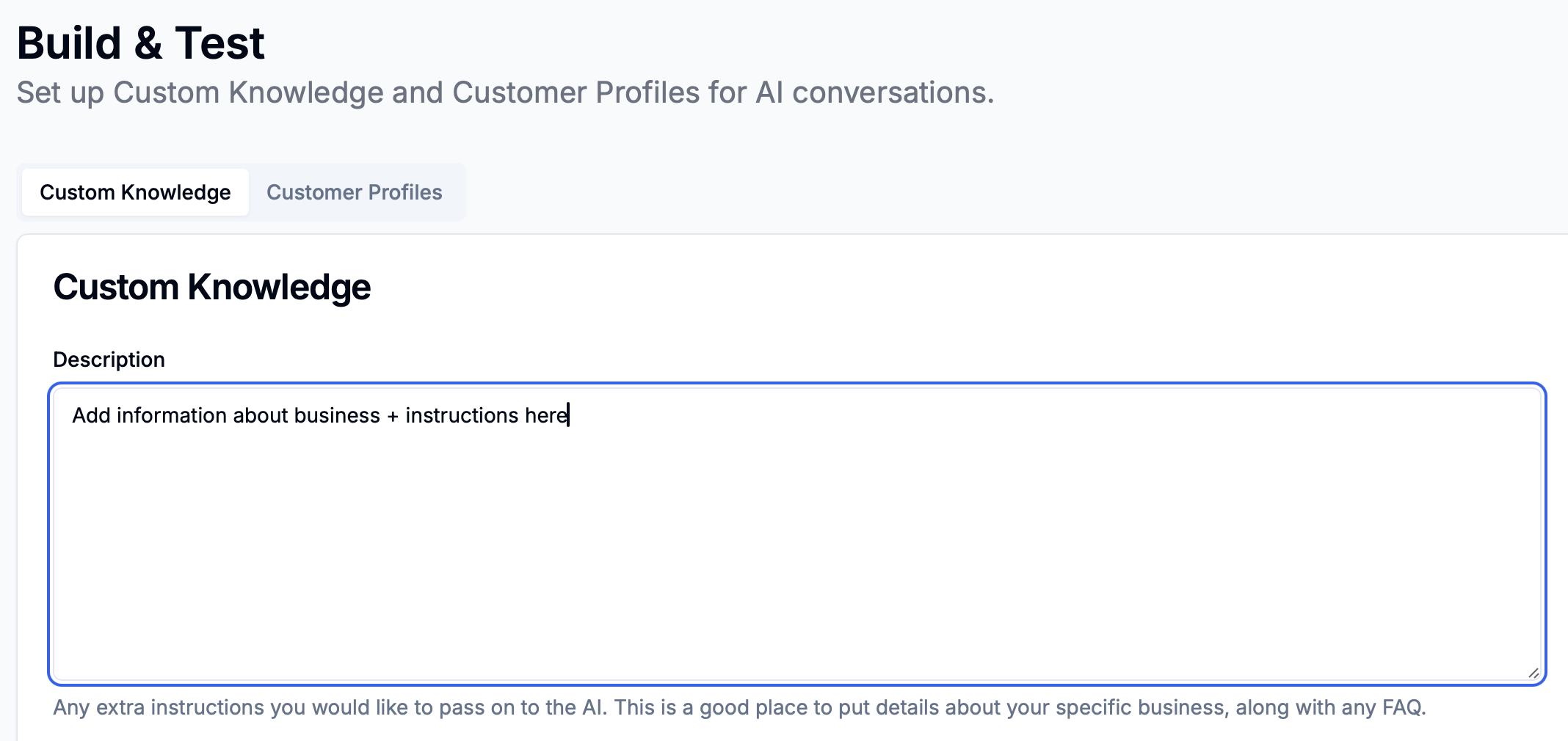
Custom Knowledge is where you feed Apten with information/instructions you want it to know across conversations with all leads (any customer profile).
There are 2 main components to Custom Knowledge:
1. Description: this is a good place to put things like information about your business, FAQs, any specific instructions you want it to follow.
2. Connect your data: this is a scalable way to pass information to Apten that it then references in lead conversations when leads ask questions.
## Description
There are 2 main types of information you would put into the Custom Knowledge description:
1. Information that you want Apten to know
* Examples:
* General information about your business:
* "Apten is an AI SMS agent that automates sales and marketing. You can customize a conversational flow that it uses to communicate with leads, and you can pass it information about your business for it to reference in conversations. The company's website is [https://www.apten.ai/](https://www.apten.ai/)."
* "Business hours are Monday to Friday, 9 AM to 5 PM PST"
* FAQs (use a format like the example below):
* "Q: Does Apten provide any onboarding/support?
* A: Each Apten customer gets white glove onboarding/support directly from the founders :)"
1. Specific instructions
* You can think of this as any specific prompt you would give to ChatGPT. Usually, they are structured as commands (e.g. "if \_\_, then \_\_\_", "make sure to...", "you must say \_\_ when...")
* Specific examples:
* "If the lead asks about scheduling a demo or meeting, you can share this link for them to self-schedule: [https://calendly.com/daniel-attent/20min](https://calendly.com/daniel-attent/20min)"
* "Make sure to be empathetic and understanding if the lead raises any concerns"
**Custom Knowledge Description in Apten:**
 ## Connect Your Data
This part of custom knowledge allows you to **connect entire files** that then serve as Apten's knowledge base when talking to leads/customers.
### How it works:
Anytime a lead asks a question, Apten will:
* First search through the information it has in custom knowledge.
* If it feels it hasn't the found the right information to answer that question, Apten will then search through all the information that's been connected as a file.
* Apten will then extract any info it thinks is relevant to the lead's question, and use that info to give an answer back to the lead.
### Steps for setup:
1. Click the 'Connect your Data' button on the bottom left of the Custom Knowledge section
2. Choose a data source to connect information from (File Upload, Web Scrape, Google Drive, Salesforce)
3. Add any relevant files you want Apten to know
4. Apten will then automatically start syncing those files to its knowledge base
A popup like this should appear when you click 'connect your data'.
## Connect Your Data
This part of custom knowledge allows you to **connect entire files** that then serve as Apten's knowledge base when talking to leads/customers.
### How it works:
Anytime a lead asks a question, Apten will:
* First search through the information it has in custom knowledge.
* If it feels it hasn't the found the right information to answer that question, Apten will then search through all the information that's been connected as a file.
* Apten will then extract any info it thinks is relevant to the lead's question, and use that info to give an answer back to the lead.
### Steps for setup:
1. Click the 'Connect your Data' button on the bottom left of the Custom Knowledge section
2. Choose a data source to connect information from (File Upload, Web Scrape, Google Drive, Salesforce)
3. Add any relevant files you want Apten to know
4. Apten will then automatically start syncing those files to its knowledge base
A popup like this should appear when you click 'connect your data'.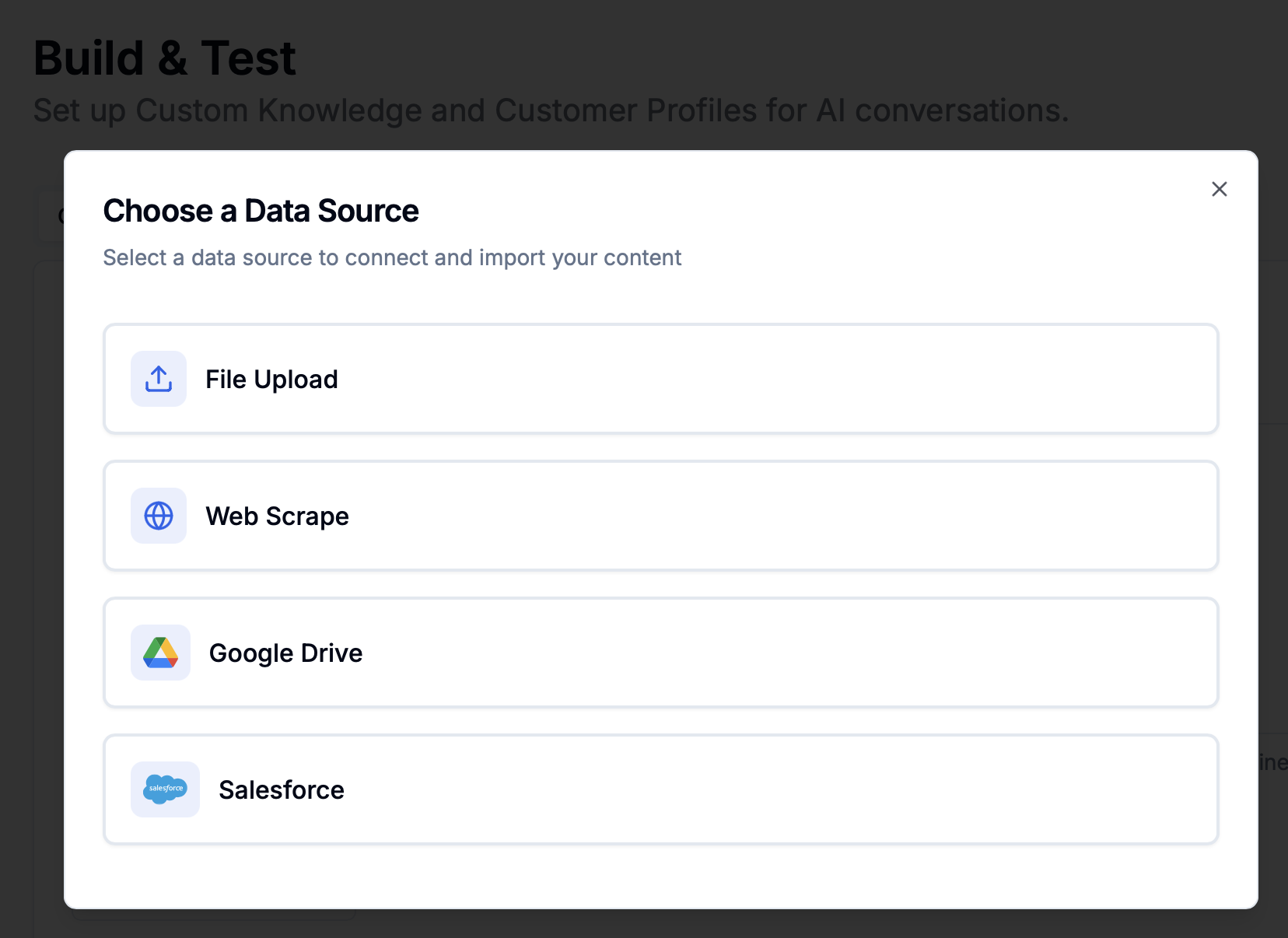 Other notes:
* \*When adding files, a good best practice is to split up files by topic, and make sure to name each file accordingly.
* After adding files, you can delete existing files or add new files as needed.
Other notes:
* \*When adding files, a good best practice is to split up files by topic, and make sure to name each file accordingly.
* After adding files, you can delete existing files or add new files as needed.