

Review the draft
Read the final response and expand Changes to inspect the edits. Check the Flow Chart, description, tone, and follow-up instructions in the editor. Review any validation warnings or failing tests, then ask for a correction or edit the draft yourself. Confirm profile settings such as channels, transfer numbers, business hours, and integrations.Restore earlier work
When available, use the restore controls on a conversation turn:- Restore state before this turn: return the draft to the state before that request.
- Restore this turn’s state: return to the result of a later turn after moving back to an earlier state.
- Revert just this change: undo an individual supported edit in the changes list.
Conversations and controls
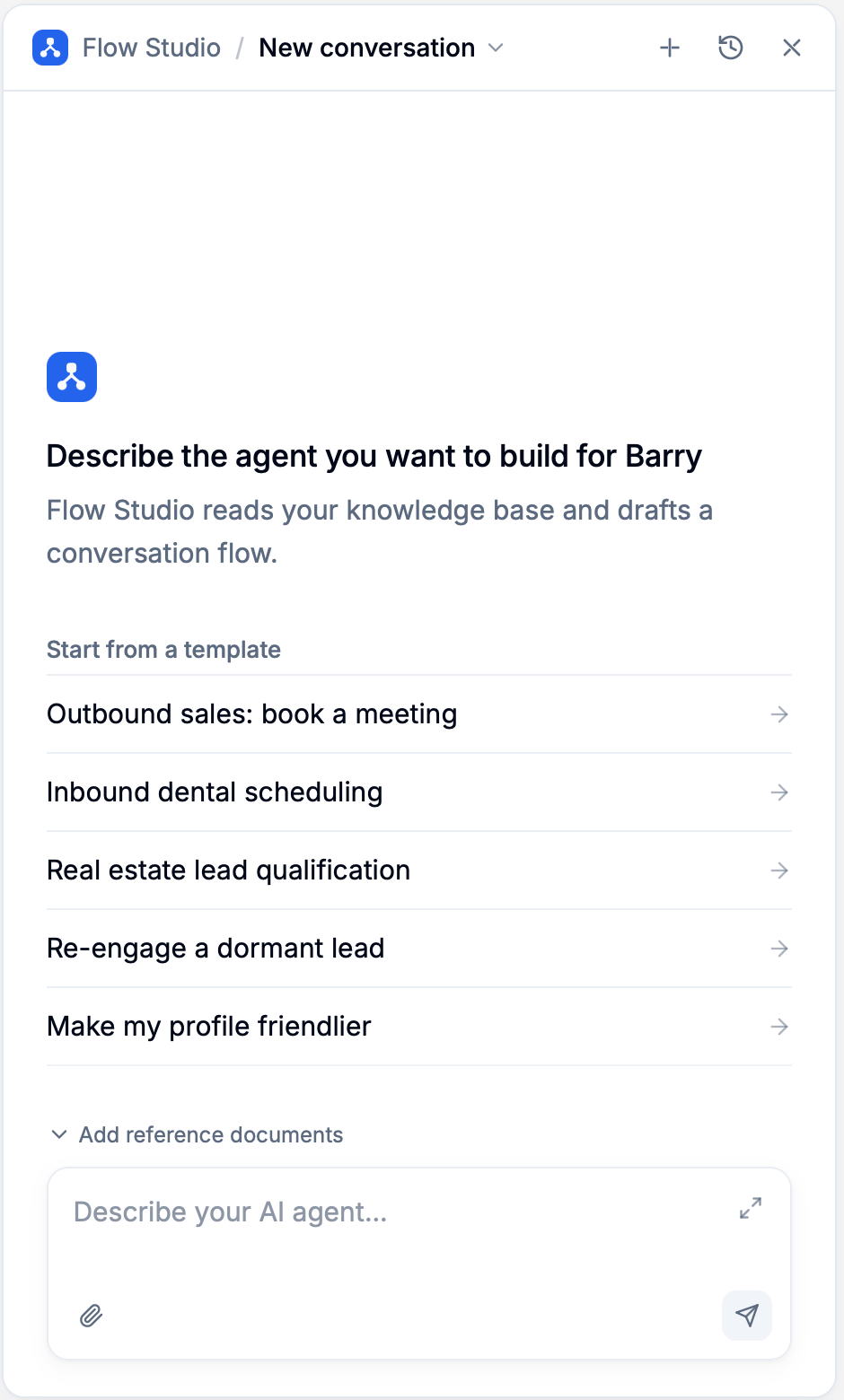
- New conversation (plus): start a separate conversation for this profile.
- History or the conversation title: return to an earlier conversation.
- Close Flow Studio (X): close the panel. If a run is active, confirm whether to close while it continues.
- Stop generation: stop the active run and review the draft it has produced so far.
Deploy your changes
1
Finish reviewing
Wait for generation and saving to finish. Review the latest test results and resolve issues you do not want in the live profile.
2
Deploy the draft
Click Deploy in the profile editor. Review the confirmation and test summary, then click Confirm Deploy.
Troubleshooting
Flow Studio is missing or disabled
Flow Studio is missing or disabled
Check that Flow Studio is enabled for your organization, that you have edit access, and that you own the draft. Wait for draft preparation and saving to finish. Contact Apten support if the button is missing.
A request failed or stopped
A request failed or stopped
Review the draft and error message, then use Retry when available. A stopped or failed run may already have made changes, so check the current flow before continuing.
My extra instruction was not applied
My extra instruction was not applied
The run may have finished before it could use your instruction. Send it as a follow-up in the same conversation after the run finishes.
The editor is temporarily locked
The editor is temporarily locked
Manual editing pauses while Flow Studio is generating and while the editor loads the final draft. Wait for it to finish, or stop the run and let the draft refresh before editing.