

Analyze a saved export
Tux can read your completed CSV exports from Data Export. Ask for the latest completed export or identify one by its creation time.Summarize my latest completed export and compare lead segments.
Chart that comparison and include the data as a CSV.
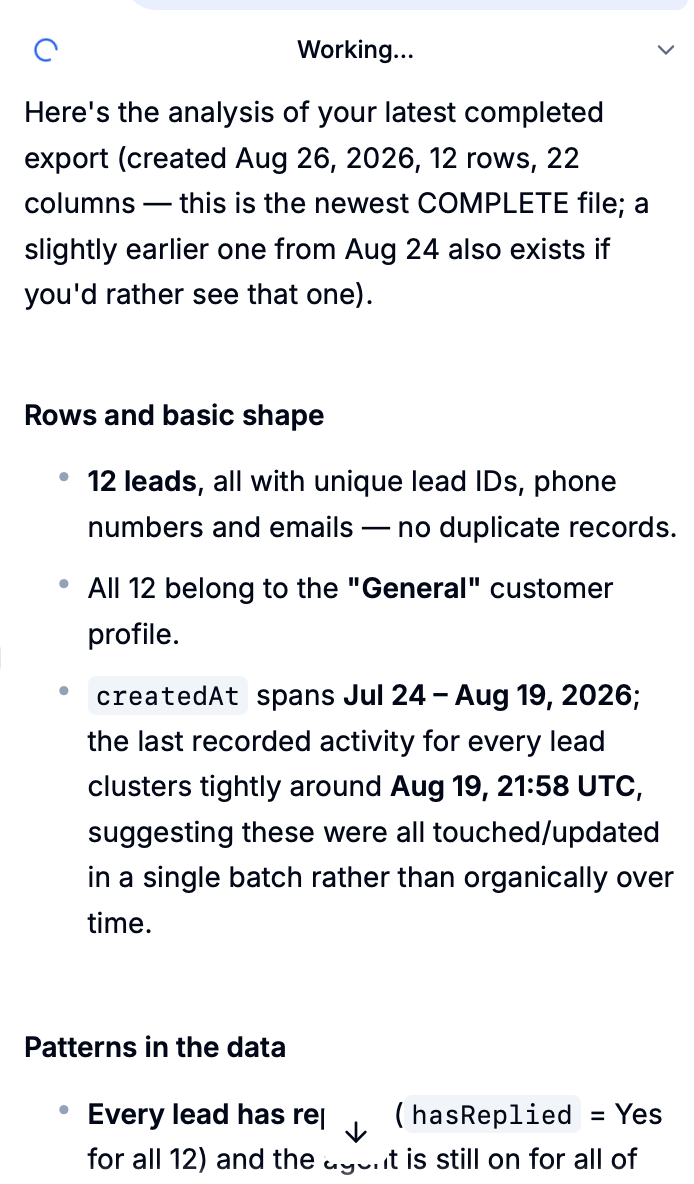
Analyze your filtered leads
On Data Export → Leads, set your filters and ask:Summarize the leads matching my current filters.Large results may be limited to a subset of matching leads. To analyze a complete exported list, create a CSV export and ask Tux to read that file.
Download files
Use the download button on a file card. Click a chart image to enlarge it. To save an interactive chart to Metrics, see Custom Graphs.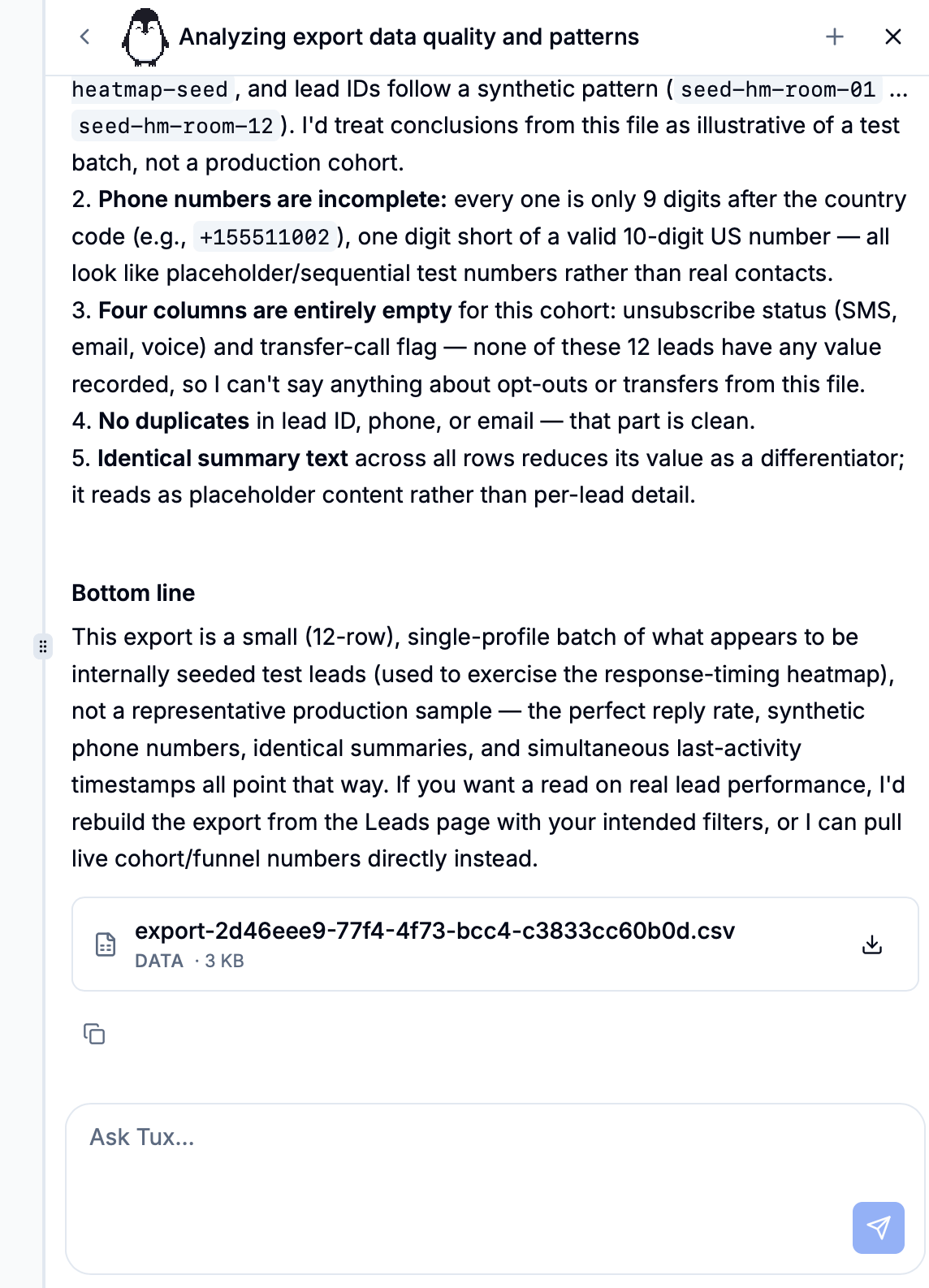
Show me the chart and CSV from earlier in this session.If a file has expired, ask Tux to recreate it. If an export is unavailable or too large, choose another completed export or create a smaller one in Data Export.