
Create and save a chart
1
Start with Tux
Go to Metrics → Custom and click Create with Tux, or open Tux and describe the chart you want.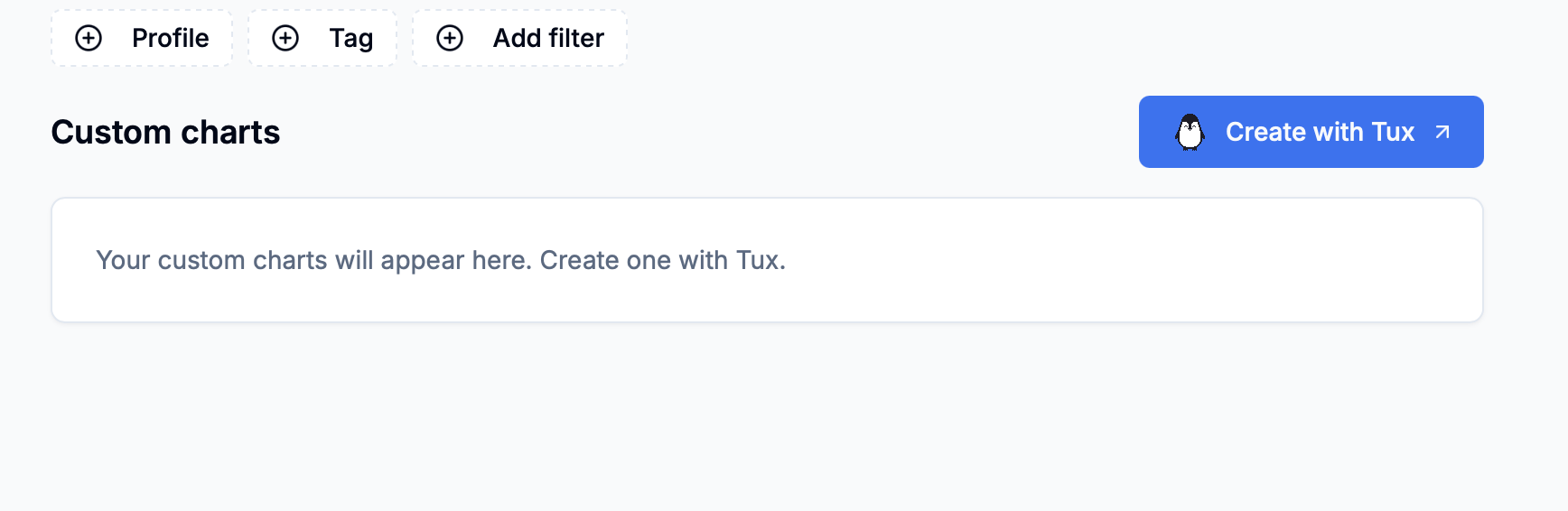
Create a line chart of daily lead imports using the current Metrics dates.
2
Refine the preview
Ask follow-up questions to change the chart before saving.
Make it a bar chart and use blue.
Compare profiles and use weekly totals.
3
Save to Metrics
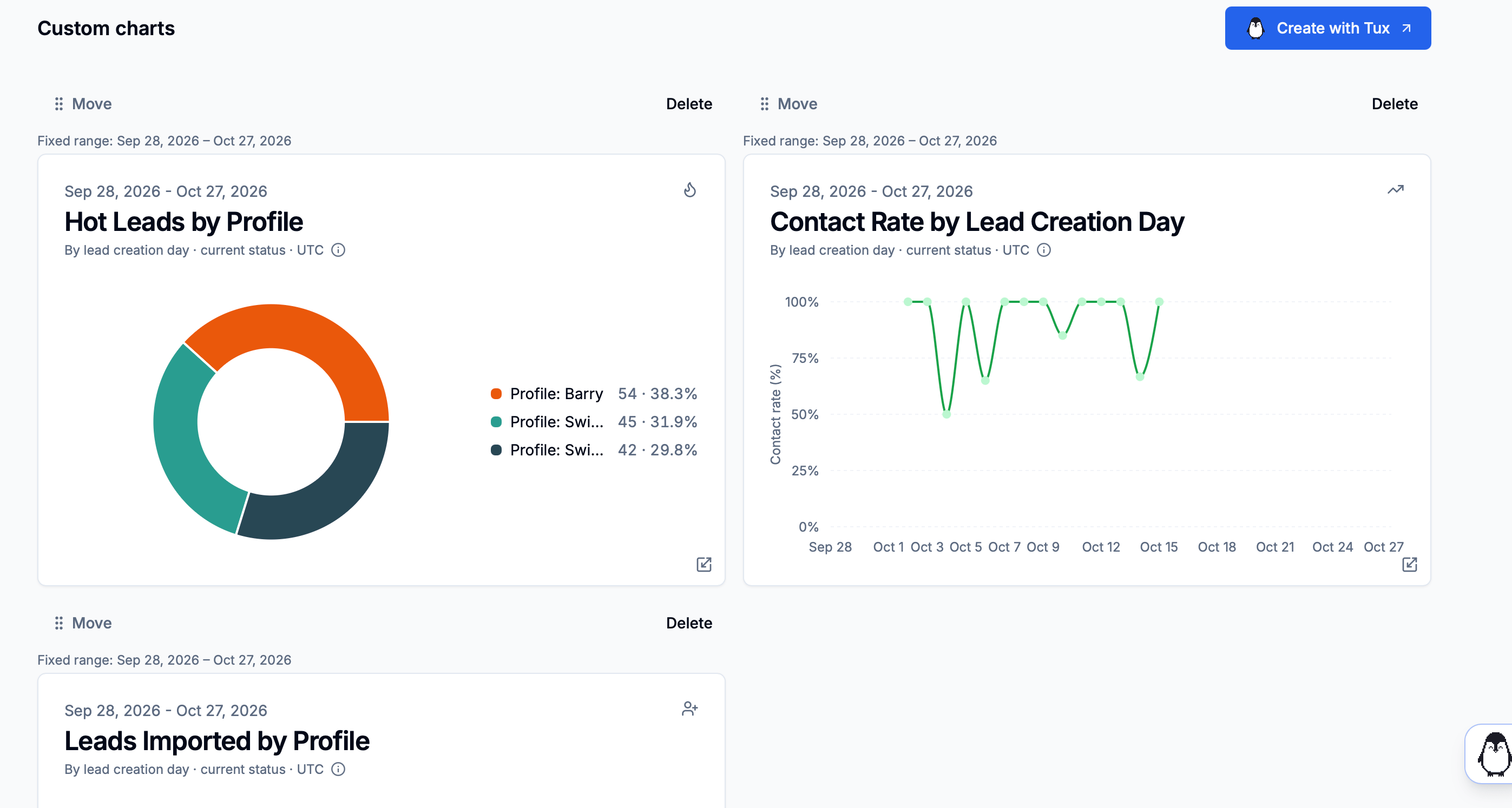
Click Save to Metrics on the preview, then View in Metrics to open the saved chart.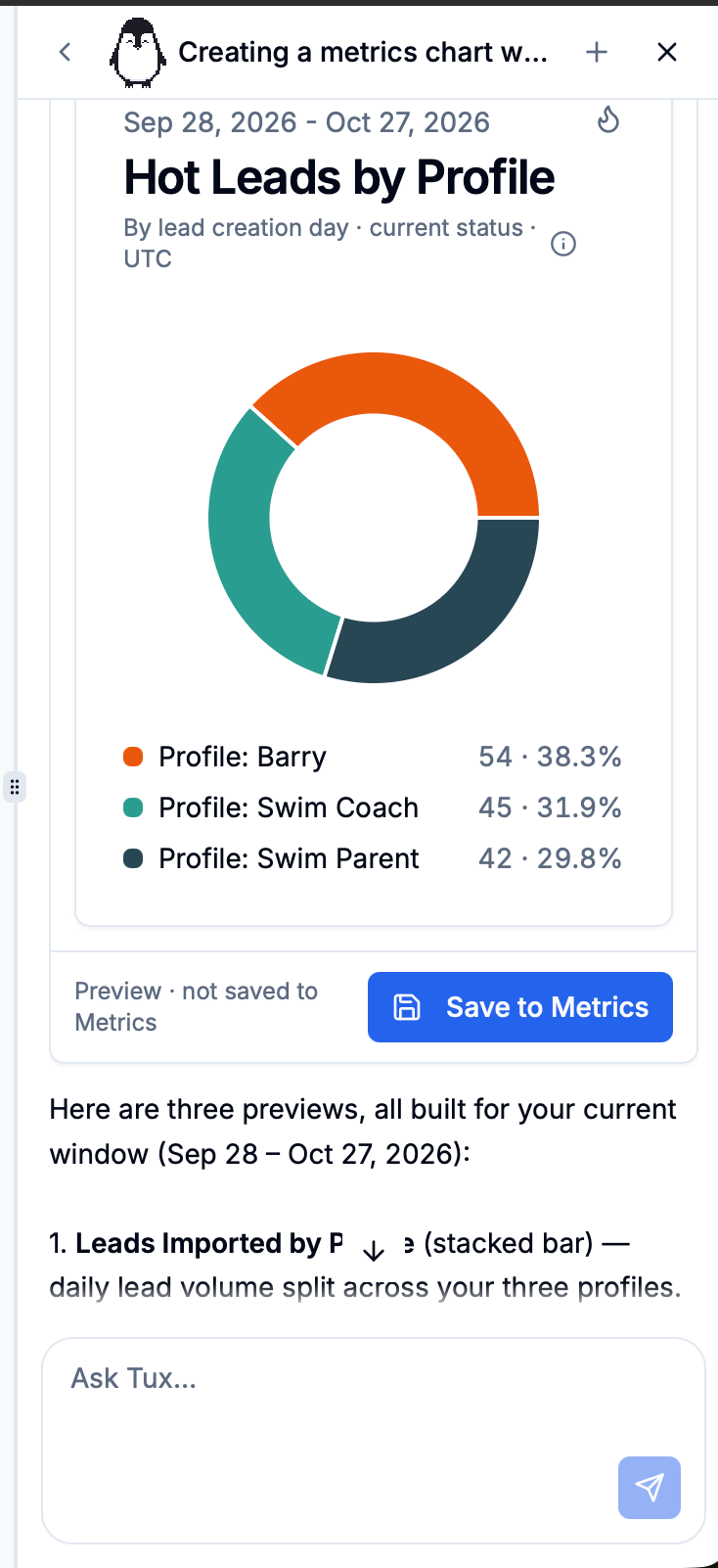
Chart types
Ask Tux to adjust colors, labels, icons, or axes as part of your request.
Dates and filters
Saved charts recalculate from current data when loaded. Tell Tux how you want the date range to work:
Charts following the page range use the last 90 days when All time is selected. Daily charts switch to weekly for page ranges longer than 366 days.
Custom charts use their own saved filters. Include the profile or other conditions you want in your request to Tux.
Arrange your charts
On Metrics → Custom, admins can:- Drag Move to reorder charts.
- Drag the bottom-right resize handle to change a chart’s size.
- Click Delete, then Delete chart to remove it for the organization.