
Overview
The Settings page is where you configure organization-wide preferences for your Apten account. It’s organized into six tabs: General, Phone Numbers, Voice, Email, Webchat, and Compliance.Only users with the Admin role can access the Settings page.
General
The General tab controls your AI’s core behavior and communication preferences.AI Name & Response Time
- AI Name — the name your AI introduces itself as in conversations.
- Response Time Delay — how long (in seconds) the AI waits before responding to an incoming message. This can make conversations feel more natural.
Long-Term Follow-Ups
Toggle whether your AI should schedule follow-up messages over longer time periods to re-engage leads that haven’t responded.Calendly Link
Add your Calendly URL so the AI can share it with leads when scheduling is relevant.Notifications
- Notification Emails — add email addresses that receive notifications when important events occur (e.g., a lead requests to speak with a human).
- Filter Notifications — when enabled, only sends notifications for events you’ve selected.
- Notification Preferences — choose which event types trigger email notifications, including any custom notifications you’ve created.
Unsubscribe Settings
- Custom Unsubscribe Keywords — define additional keywords (beyond the defaults) that trigger an opt-out when a lead sends them.
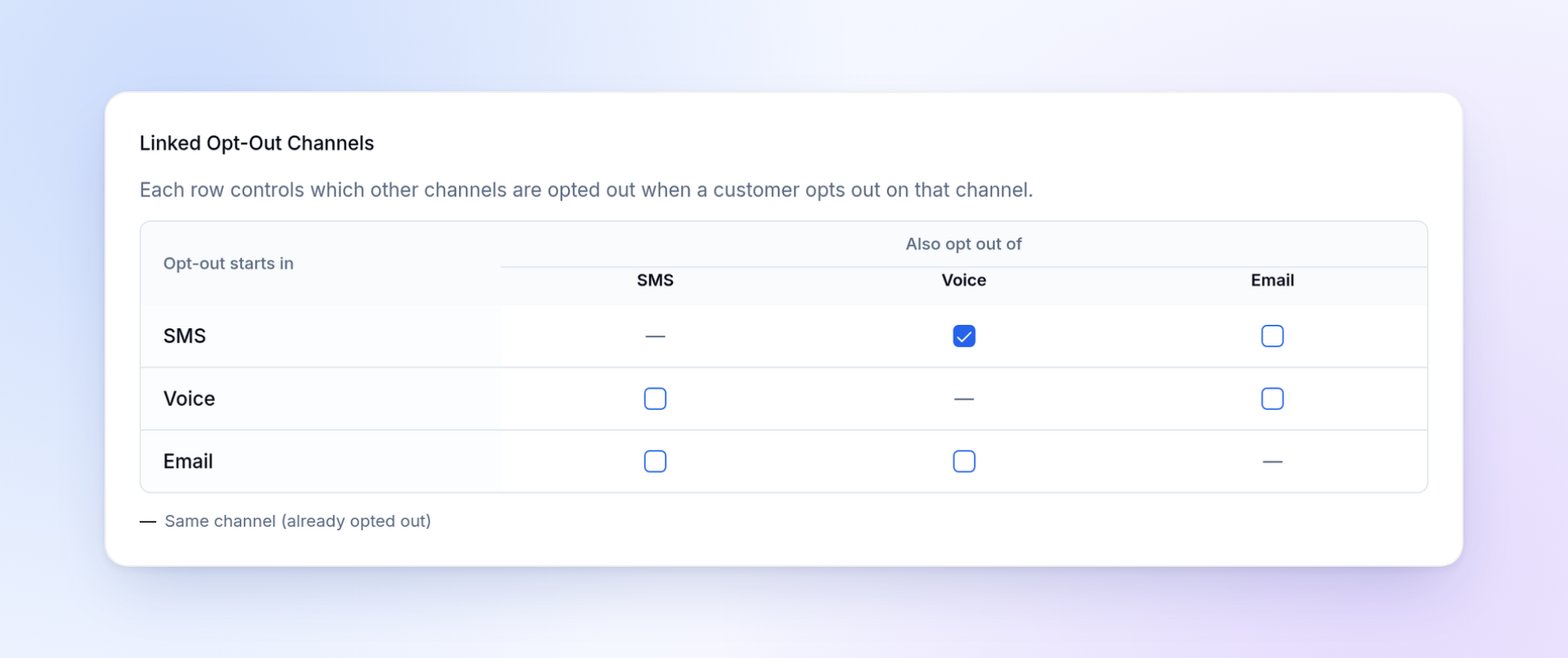
- Linked Opt-Out Channels — choose which other channels a lead is opted out of when they opt out on a given channel. Each row is one direction, so you can, for example, opt a lead out of voice when they text STOP without opting them out of SMS when they ask not to be called.
Phone Numbers
The Phone Numbers tab lets you manage the phone numbers associated with your organization.Your Numbers
View all your phone numbers in a table showing the number, its type (Primary or Inbound), and the customer profile it’s assigned to. Your primary number is used for outbound messages by default. Inbound numbers can each be assigned to a specific customer profile so that calls or texts to that number use the right AI configuration. To change a number’s assigned profile, click the edit button next to it.Purchasing Numbers
Click Purchase Number to search for and buy a new phone number. You can search by area code or region to find a number that matches your business location.Local Presence Bundles
Local presence bundles let you purchase a set of phone numbers across different area codes. When reaching out to leads, Apten automatically uses a number with a local area code matching the lead’s location, which can improve answer rates.Voice
The Voice tab shows your organization’s voice calling capacity. If voice calling isn’t active for your organization, the tab says so and the capacity details are hidden.Voice Capacity
- Total limit — the maximum number of simultaneous calls for your organization. This limit is managed by Apten; contact support to change it.
- Reserved for inbound — the number of lines always kept free for incoming calls. The rest of your limit is used for outbound calling. Admins can edit this value.
Capacity History
Charts show how your calling capacity is keeping up over the last 24 hours, 7 days, 14 days, or 30 days:- Concurrency over Time — active calls compared with your limit.
- Queue Depth over Time — how many priority and standard calls were waiting to be placed.
Domain Verification
- Enter your domain name and click Add Domain
- Apten provides DNS records (DKIM and SPF) that you need to add to your domain’s DNS settings
- After adding the records, click Verify to confirm your domain
Sending Domains
For each domain, configure a sender prefix (the part before the@) to create the sender address your emails will come from.
Choose one eligible, verified domain as the Default sender. Profiles using the organization default follow this choice. You can also:
- Select Enable multiple sending domains to allow individual customer profiles to use different eligible sending domains.
- Retire a sending domain that is no longer needed. The default sender cannot be retired.
- Reactivate a retired domain without making it the default sender.
Webchat
The Webchat tab manages API keys and configuration for your embedded webchat widget.API Keys
API keys authenticate your webchat widget. Each key has:- Allowed Domains — the websites where the widget can be used
- Status — active or inactive
Webchat Configuration
- Webchat Customer Profile — the customer profile used for webchat conversations.
- Lead Conversion Profile — optionally assign a different profile when converting webchat leads to phone outreach.
- Greeting Message — the first message displayed when a visitor opens the widget.
- Auto-Conversion — automatically convert inactive webchat conversations to phone outreach after a configurable inactivity timeout.
- Opt-In Consent Message — text displayed above the contact form’s submit button for compliance purposes.
Compliance
The Compliance tab lets org admins control when Apten may contact leads and configure additional outreach checks.Message Timing
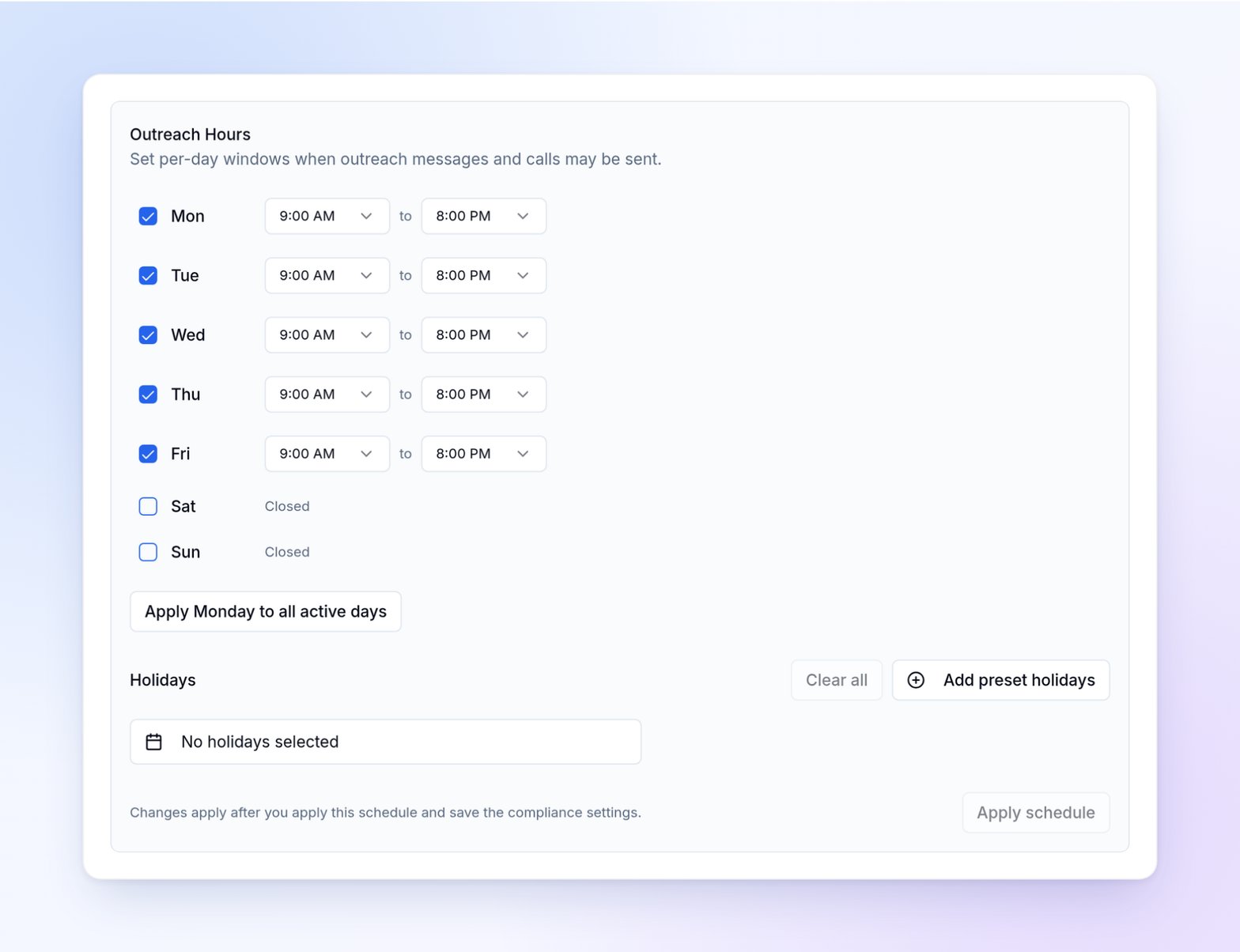
Configure the organization-wide schedule that automated follow-ups always respect:- Outreach Hours & Holidays — set the allowed hours and days for follow-ups, and add dates when outreach should pause.
- Time Zone — set the organization fallback timezone for scheduling.
- Respect Business Hours — apply outreach windows to initial outreach as well as follow-ups.
- Respect Holidays — independently apply holidays and blackout dates to initial outreach.
Profile-Specific Outreach
By default, every customer profile uses the organization’s outreach hours and holidays. When a profile needs a different schedule (for example, a program with weekend admissions hours), select it under Profile-specific outreach, turn on Customize this profile, and set its own outreach hours and holidays. A profile’s schedule also applies to its variants, and state-specific rules still apply on top of it.