

Overview
Connect your Apten account with Microsoft Dynamics 365 to sync information about leads and conversations in Apten with your Dynamics 365 CRM. Currently, we support syncing:- Tags: sync tags into a multi-select field you select in Dynamics 365.
- Default Tags: sync built-in tags (Hot, Qualified, Has Replied, Unsubscribed SMS, Unsubscribed Email) to boolean fields you select.
- Summaries: sync lead conversation summaries into a text field you select in Dynamics 365.
- Variables: map variables to existing Dynamics 365 fields, which will sync in real-time.
- Do not contact: sync a lead’s do-not-contact status to a boolean field you select in Dynamics 365.
Prerequisites
The Microsoft account used to connect must be able to read the selected entity and read or write the fields you want to sync. Apten does not create fields, publishers, or solutions in your Dynamics 365 environment.Step 1: Connect Apten to Dynamics 365
- In Apten, go to Integrations
- Click Connect on the Microsoft Dynamics 365 card
- Enter your Dynamics 365 environment name (the prefix from your Dynamics URL, e.g. if your URL is
yourorg.crm.dynamics.com, enteryourorg) - Click Connect and authorize with your Microsoft account
- Click Manage to go to the settings page
- Select the Dynamics 365 object that you want to sync with (Lead, Contact, or Account), and click Save
- If you’d like to sync Tags, use the field mappings to choose the existing Dynamics 365 field that should receive tag values.
- If you’d like to sync Summaries, use the field mappings to choose the existing multi-line text field that should receive conversation summaries.
Change the Connected Microsoft Account
To switch which Microsoft account Apten uses, for example moving to a dedicated integration user, you don’t need to disconnect.- In Apten, go to Integrations and click Manage on the Microsoft Dynamics 365 card
- Under Environment & Object, find Connected Microsoft account and click Change account
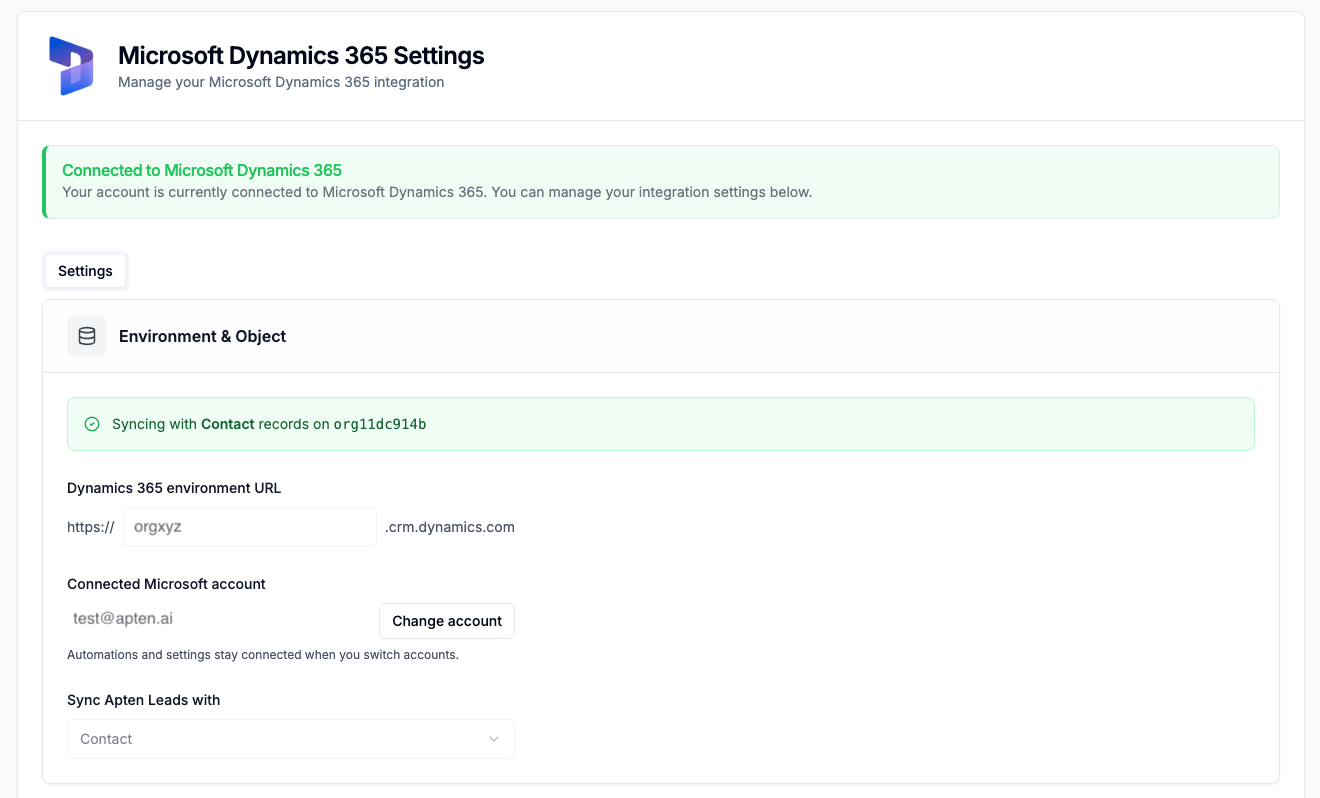
- Click Change account to confirm, then sign in with the new account in the Microsoft window. If you’re already signed in to Microsoft, choose Use another account.
The new account needs the same access described in Prerequisites and must belong to the same Dynamics 365 environment. If you sign in to a different environment, Apten shows a warning. Click Change account again and sign in with an account for your environment.
Step 2: Map Variables (Optional)
When setting up variables in customer profiles in Build & Test, you can map them to existing Dynamics 365 fields. These fields will automatically sync to Dynamics 365 in real-time when Apten talks to a lead.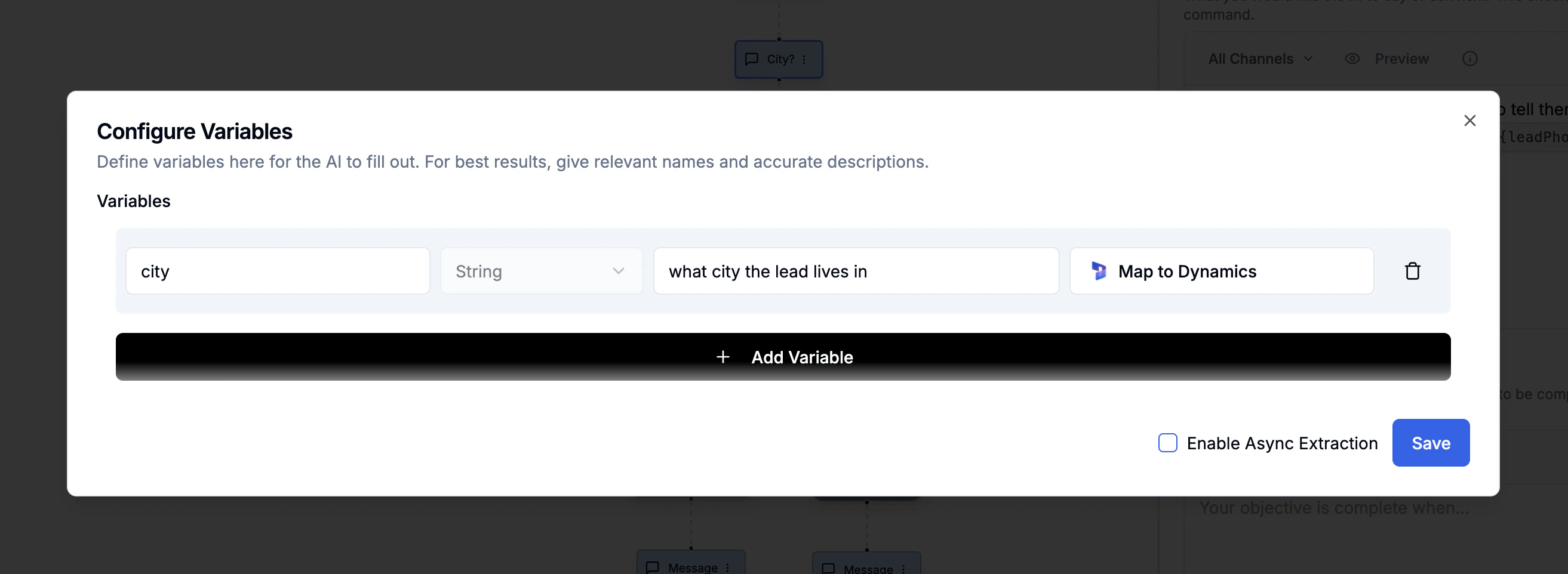
Step 3: Import Leads with Dynamics IDs
When importing leads into Apten, you must set the following fields:integrationSource: Set this to'dynamics'to indicate the lead is from Dynamics 365dynamicsId: Set this to the Dynamics 365 record GUID (e.g.'a1b2c3d4-e5f6-7890-abcd-ef1234567890')