

Overview
Every time a trigger fires, Apten records a run — one execution of one automation for one CRM record. The Runs tab shows activity across every automation in your organization, with per-step detail for each run. Run history is retained for 90 days, including for deleted automations.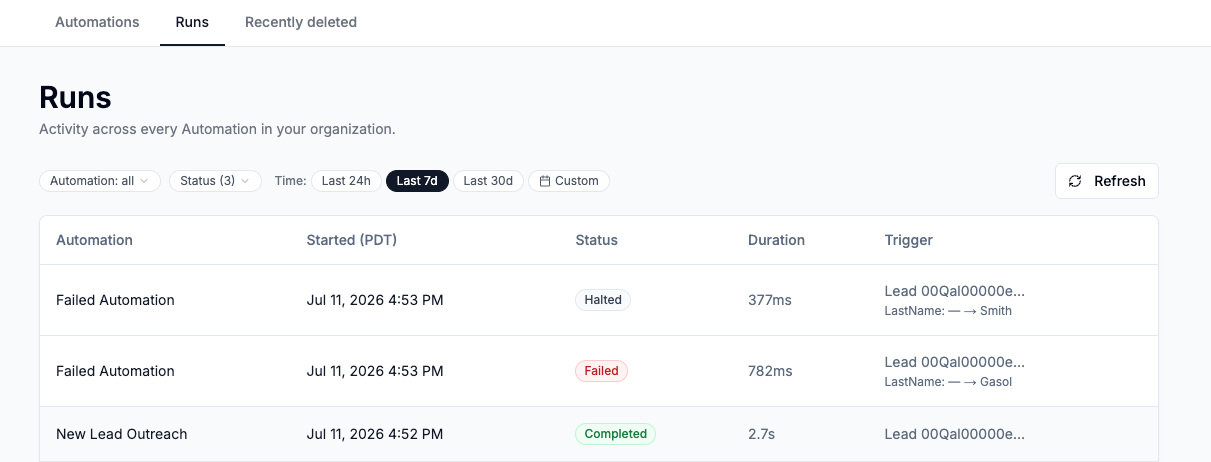
The Runs Page
Open Automations → Runs, or use View Runs in an automation’s ⋯ menu to jump there pre-filtered to that automation. Filters:- Automation — one, several, or all automations
- Status — by default Completed, Failed, and Halted are shown; add Running, Waiting, and Pending to see in-flight runs
- Time — Last 24h, Last 7d (default), Last 30d, or a custom date range
Status: Open → Qualified).
Run statuses
Run Details
Click any run to open the Run details panel:- Trigger context — the CRM record data that fired the run.
- Steps — each step with its status and duration. Expand a step to see its Resolved params (the exact inputs after template references were filled in) and Output, or the error if it failed.
- Delay timing — the active Delay shows Waiting until with its resume time. After it resumes, the step shows Waited until. If the automation was off or deleted when the Delay ended, the step explains why the run halted.
- Branch outcomes — for runs with a Branch step, each branch shows how it ended: Completed, Failed, Stopped by filter, Waiting, Skipped — rules not met, or Fallback — not needed.
- Conditions — Filter steps and branches show the conditions they evaluated (as configured when the run started, groups included), so you can see exactly why a run halted or a branch was skipped.
- View Run Config — the full configuration of the automation as it was when this run started. Useful when you’ve edited the automation since.
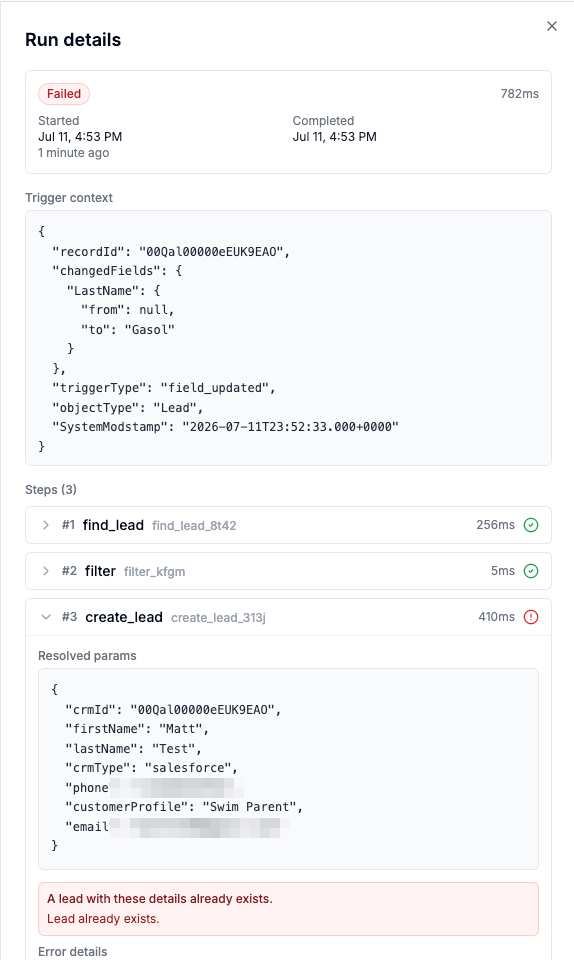
Troubleshooting Failed Steps
When a step fails, the run details show a plain-language error. The most common ones:When a trigger matches a very large number of records at once — for example a CRM mass update touching thousands of rows — runs are queued and processed in batches. A large burst can take a while to drain; watch progress on the Runs page with the Running and Pending statuses enabled.