

Overview
A trigger defines the CRM event that starts an automation. Apten checks your CRM on a regular polling interval and starts one run for each record that matches your trigger since the last check. Triggers are available for Salesforce, Salesforce Sandbox, and Microsoft Dynamics. Only CRMs connected on the Integrations page can be selected.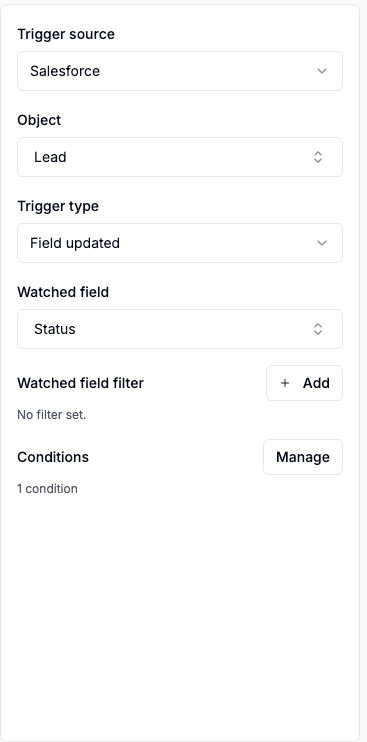
Configuring a Trigger
Select the Trigger card in the builder and fill in:- Trigger source — the CRM to watch.
- Object — the CRM object to watch (for example Lead, Contact, or Opportunity — custom objects are supported).
- Trigger type — New record or Field updated.
New record
Fires once for each record of the chosen object created after the automation is turned on. Existing records never fire it — there is no backfill, so this trigger type activates instantly and works on objects of any size.Field updated
Fires when a specific field — the Watched field — changes value on any matching record. Two properties make it precise:- It fires only on real changes. Apten tracks the watched field’s value per record, so a record being saved without the field changing does not fire the trigger.
- Repeat transitions fire again. If a Lead’s status moves
Qualified → Lost → Qualified, the second arrival atQualifiedfires the trigger a second time.
Status equals Qualified fires only when the field becomes Qualified).
Trigger Conditions
Conditions narrow which records can fire the trigger at all, on any field of the object — for exampleLeadSource equals Web or State in [CA, NY]. When you add more than one condition, choose how they combine — AND (every condition must match) or OR (at least one must match). To mix AND and OR — like LeadSource equals Web AND (State equals CA OR State equals NY) — add a condition group.
Trigger conditions are applied inside the CRM query itself, so records outside your conditions are never even polled.
Trigger conditions use fixed values only. Relative date comparisons (“within 7 days of the trigger”) are available on Filter and Branch steps, not on the trigger.
Poll Interval
By default Apten checks your CRM every 5 minutes. You can adjust this per automation from the ⋯ menu → Adjust Poll Interval, anywhere from 1 to 60 minutes.Automations fire on the next poll after a change, not at the instant the change happens in your CRM. With the default interval, expect up to a few minutes between a CRM change and the run appearing on the Runs page.
Turning an Automation On
What happens when you flip the toggle to On depends on the trigger type:- New record triggers activate instantly.
- Field updated triggers show Activating… while Apten takes an initial snapshot of the watched field across every record matching your conditions. This is what makes exact change detection possible. Activation usually takes seconds to a few minutes depending on how many records match.
Record limits for Field updated triggers
Because activation snapshots every matching record, Field updated triggers have a size limit on the matching record set:
If your object exceeds the limit, activation fails and the automation returns to Off. Two ways to resolve it:
- Narrow the trigger conditions so fewer records match — the limit applies to the records matching your conditions, not the whole object.
- Use a New record trigger instead if you only care about records created going forward — New record triggers have no size limit.