

Overview
A warm transfer connects a lead to a human agent through a live conference call, rather than a simple cold transfer. When enabled with the AI Transfer Bot, an AI voice agent calls the human agent first to brief them on the lead’s context — including their name, conversation summary, and any relevant details — before connecting the call. This ensures agents are prepared and leads experience a seamless handoff.The transfer bot is fully customizable — you can provide custom instructions
to control the briefing flow (e.g., verify agent identity, relay specific lead
details) and assign tools so the bot can look up information or take actions
during the handoff conversation.
How It Works
- Apten determines a transfer is needed and places the lead on hold with music (and an optional custom message)
- The AI transfer bot calls the human agent and briefs them on the lead
- The agent confirms they’re ready to take the call
- The bot connects the agent to the lead in a live conference
The transfer bot uses voice detection to distinguish between human agents and
automated systems (voicemail, hold queues, IVRs). The bot won’t begin its
briefing until it hears a human agent speak. This means if the agent’s number
routes through a queue or hold system, the bot waits silently until a real
person picks up — ensuring the briefing is never wasted on a machine.
Setup
Configure the warm transfer bot in Profile Voice and Transfer Settings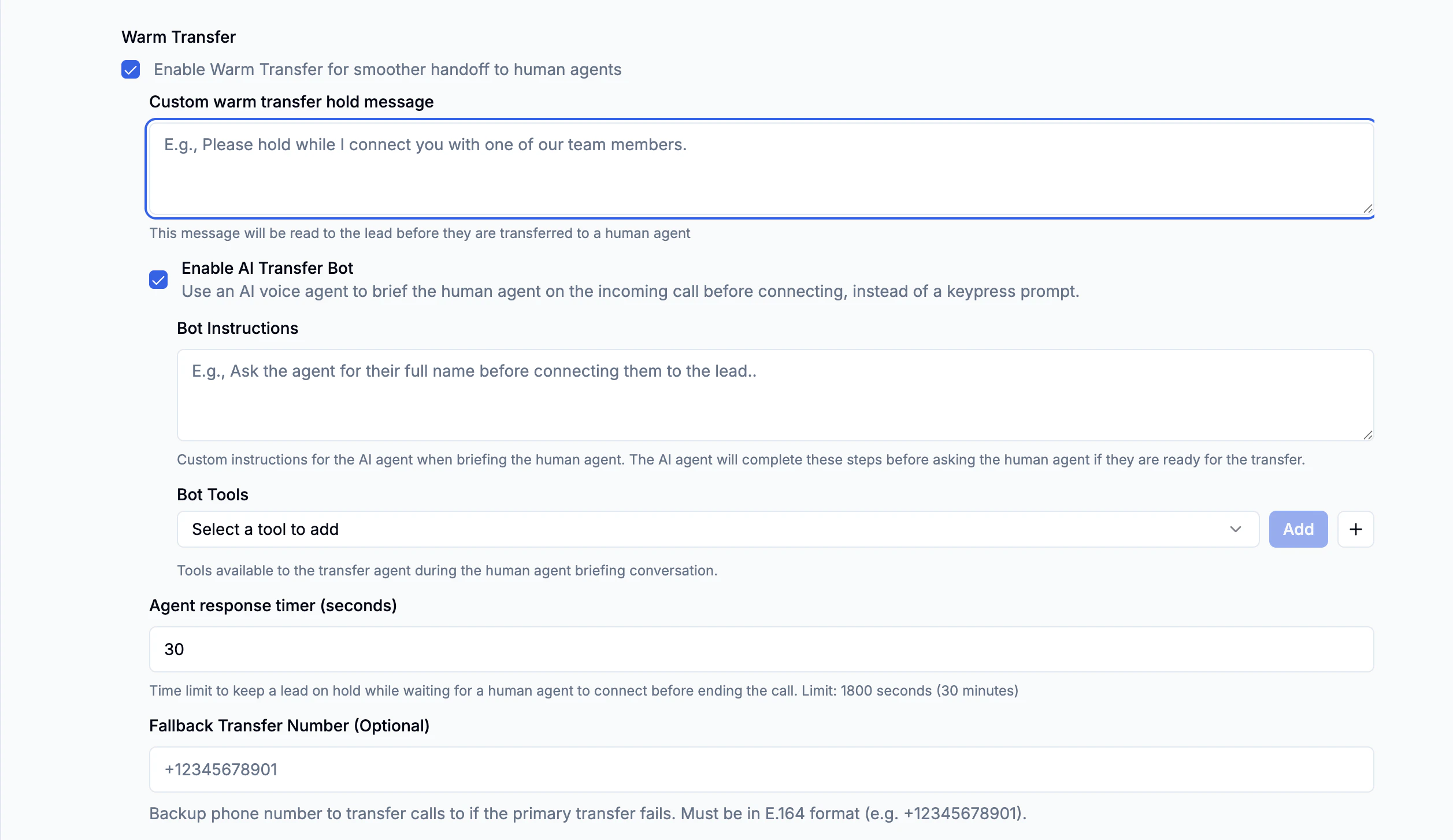
Step 1: Enable Warm Transfer
- Go to Build & Test
- Select the customer profile you want to configure
- In the profile settings, find the Transfer section
- Toggle Warm Transfer on
Step 2: Set a Custom Hold Message (Optional)
Once warm transfer is enabled, you can set a Custom warm transfer hold message. This message is read to the lead before they are placed on hold. Example: “Please hold while I connect you with one of our team members.”Step 3: AI Transfer Bot
The AI Transfer Bot is enabled by default. It uses an AI voice agent to brief the human agent on the lead’s context before connecting the call. If you prefer a simple keypress prompt instead, you can toggle Warm transfer bot off.Stay on the Line While Dialing (Optional)
By default, the lead waits on hold music while the transfer bot reaches and briefs the agent. Turn on Stay on the line while dialing to keep the AI in the conversation with the lead instead. The lead is only moved over once the agent accepts the transfer, and if no agent picks up, the AI is still on the line to let the lead know and continue the conversation.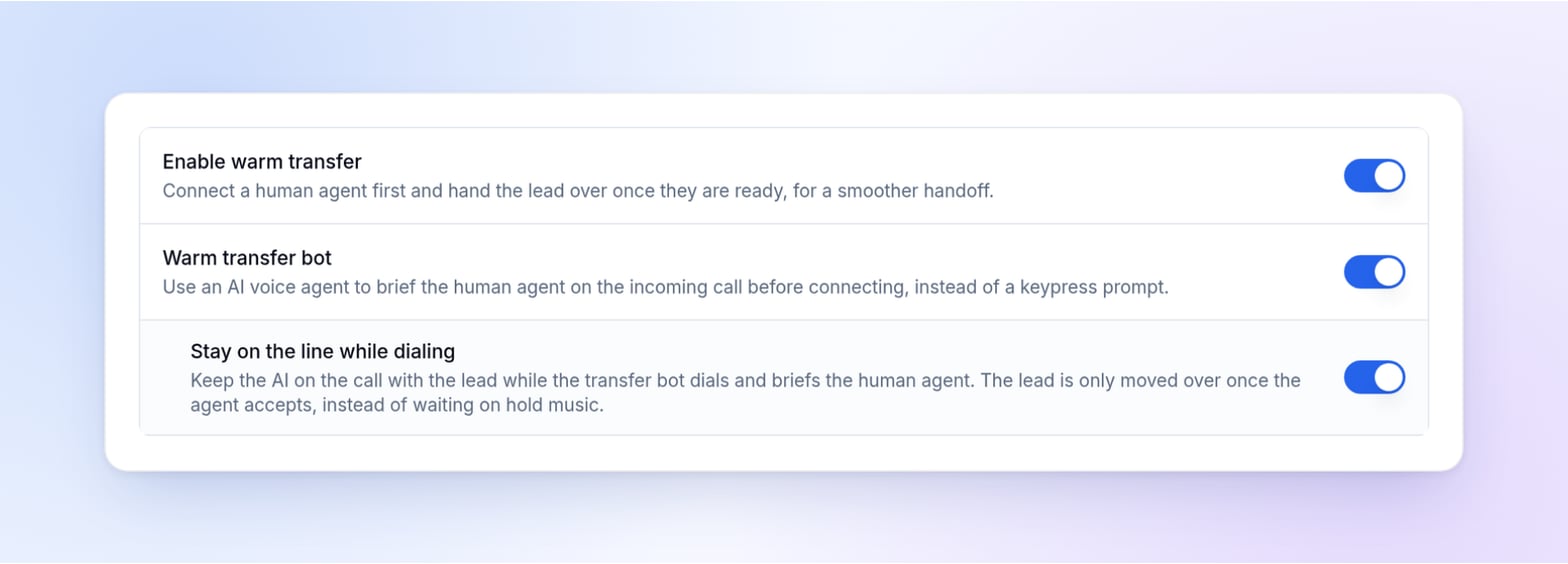
Step 4: Configure Bot Instructions (Optional)
Add custom instructions to control what the bot says or does when briefing the agent. The bot will complete these steps before asking the agent if they’re ready for the transfer. Example: “Ask the agent for their full name before connecting them to the lead.”Step 5: Assign Bot Tools (Optional)
Select any tools you want available to the transfer bot during the briefing conversation. This allows the bot to look up information or take actions while speaking with the agent.Scheduling and availability tools are not available for the transfer bot.
Step 6: Set the Agent Response Timer
Configure how long to keep the lead on hold while waiting for a human agent to answer. The default is 60 seconds, with a maximum of 1800 seconds (30 minutes). If the timer expires and no agent has connected, Apten plays the agent missed transfer message and ends the call, unless a fallback number is configured. With Stay on the line while dialing on, the AI tells the lead instead and continues the conversation.Step 7: Customize the Agent Missed Transfer Message (Optional)
Set Agent missed transfer message to control what the lead hears when no agent answers a warm transfer, for example: “Looks like no one is available right now. I’m going to end this call and you’ll get a text shortly.” Leave it blank to use the default recording.Step 8: Set a Fallback Transfer Number (Optional)
Add a backup phone number that Apten will try if the primary agent doesn’t answer within the timeout. When configured, a separate Fallback Agent Response Timer appears to control the timeout for the fallback attempt.Business Hours and Holidays
Live transfers follow the profile’s transfer Business Hours and Holiday schedule. Set Holiday schedule to Organization holidays to use your organization’s holiday dates, or to Custom schedule to pick Custom holidays for this profile. A new profile starts on Custom schedule with no dates, so no holidays apply until you add them. On a holiday, the AI won’t start a live transfer by text or voice and lets the lead know a live transfer isn’t available that day.Monitoring
When a warm transfer fails because no agent answered, Apten fires anagent.missed_transfer webhook event. See Agent Missed Transfer to set up monitoring for failed transfers.
If you have a fallback transfer number configured, Apten also fires a transferFallbackTriggered webhook the moment the fallback is dispatched, which is useful for real-time on-call alerting before the terminal outcome is known. This event is only emitted for warm transfers.