

Overview
The Send Contact Card tool lets Apten share your business contact as a vCard over SMS or during a voice call. Leads receive an MMS attachment that they can open and save directly to their phone’s contacts. Use it when a lead asks for your number, email, or how to reach you — without pasting a long block of contact text into the chat.Enable Send Contact Card
Contact cards are opt-in per profile. Add the tool under Global Tools on the profile flowchart:- Go to Build & Test and open the customer profile
- Click Edit Profile
- On the flowchart, open the Tools section
- Under Global Tools, add Send Contact Card
- Open VCards Settings, which appears after you add the tool

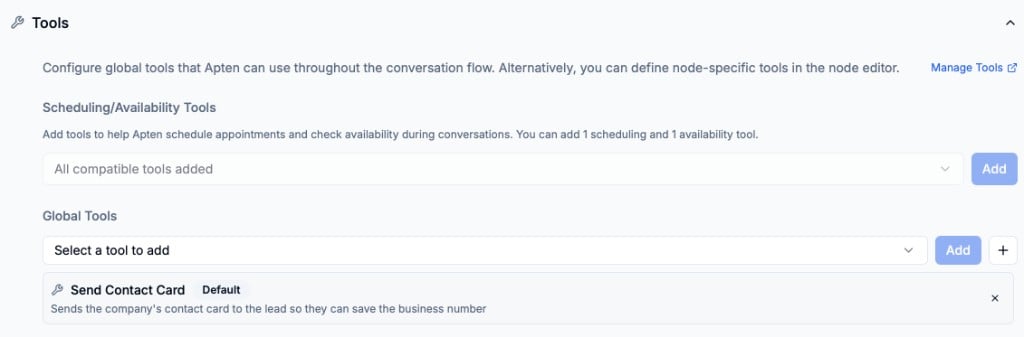
Apten only sends a contact card when this tool is enabled for the profile.
Leads who have opted out of SMS will not receive one.
Configure the Contact Card
Use VCards Settings to control how the saved contact appears:- Name is required and defaults to the AI name configured in Settings.
- Company Name is optional and defaults to your organization name.
- Contact Card Image is optional. Upload a PNG, JPG, or GIF up to 200KB.
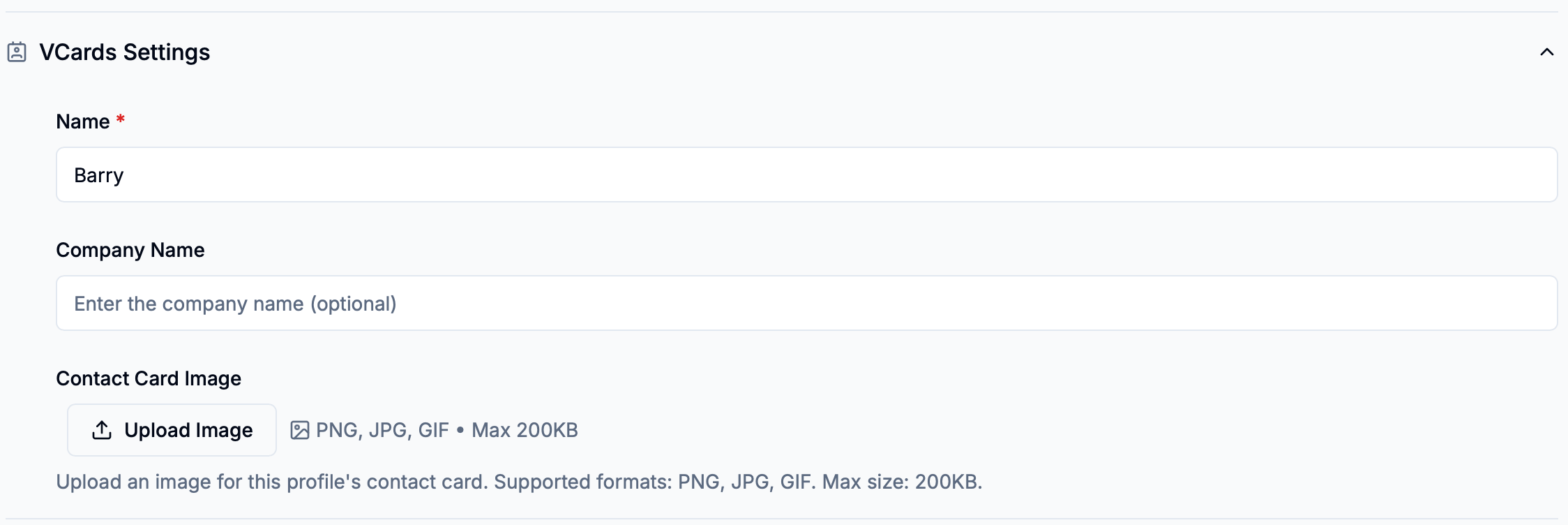
Required name validation
Every enabled contact card must have a name. If the field is empty, Apten highlights both the field and the settings section and prevents the profile from being published until you add one.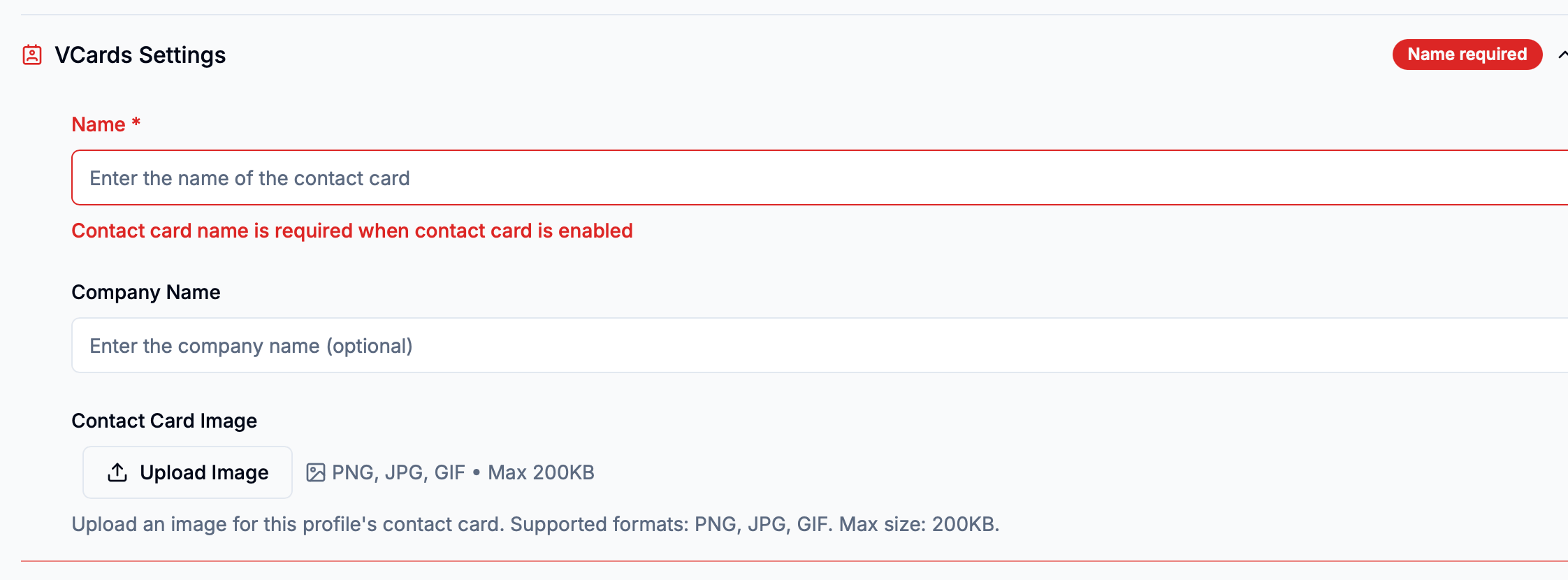
Keep the image small (200KB max). Larger files can fail over MMS. WebP is not
supported for contact cards.
What the Card Includes
The card uses the published settings for the profile assigned to the conversation:- The name, company name, and optional image from VCards Settings
- The business phone number assigned to the conversation, or your organization’s main number
- Your organization’s email address and website when available
How It Works in Conversations and Calls
When a lead asks for contact information and the tool is enabled, Apten can send the company contact card and briefly confirm that it was sent. During a voice call, Apten texts the card to the phone number associated with the caller. Contact cards cannot be delivered to landlines or to leads who have opted out of SMS. Each successful send is recorded in the conversation history, giving Apten context that the card was already shared.What You See in the Dashboard
Sent contact cards appear in the conversation timeline as a Contact card entry, not as a long text message.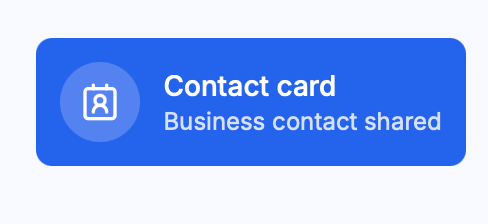
What the Lead Sees
On the lead’s phone, the contact card arrives as an MMS attachment they can open and save.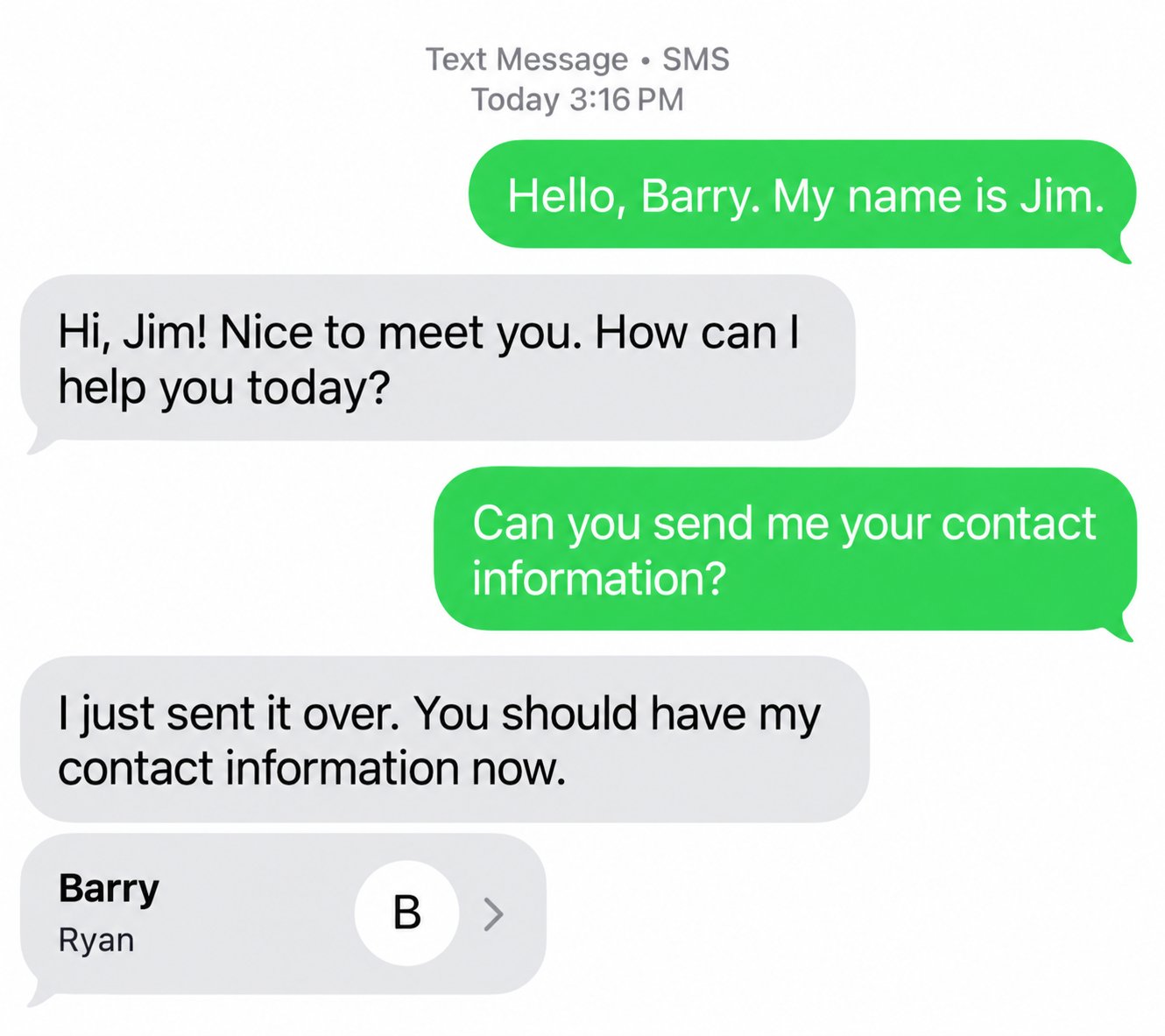
On some iPhones, the SMS thread may show a letter monogram until the lead
opens the contact. The photo (if you uploaded one) appears when they open or
save the contact — this is normal iPhone MMS behavior, not a missing image.
Related
- Customer Profiles — profile description, flowchart, and settings