

Overview
The Send Calendar Invitation tool lets Apten email a lead a calendar invitation after they confirm an appointment time. The lead can accept or decline the invitation directly in supported email clients, and every invitation also includes a downloadable.ics file as a fallback.
Use it for campus tours, consultations, demos, or any appointment where you want the time to land on the lead’s calendar instead of only in the conversation.
Enable Send Calendar Invitation
Calendar invitations are opt-in per profile and are sent by email, so the profile needs email turned on.- Go to Build & Test and open the customer profile
- Click Edit Profile
- In the Email section, turn on Email features if it isn’t already on
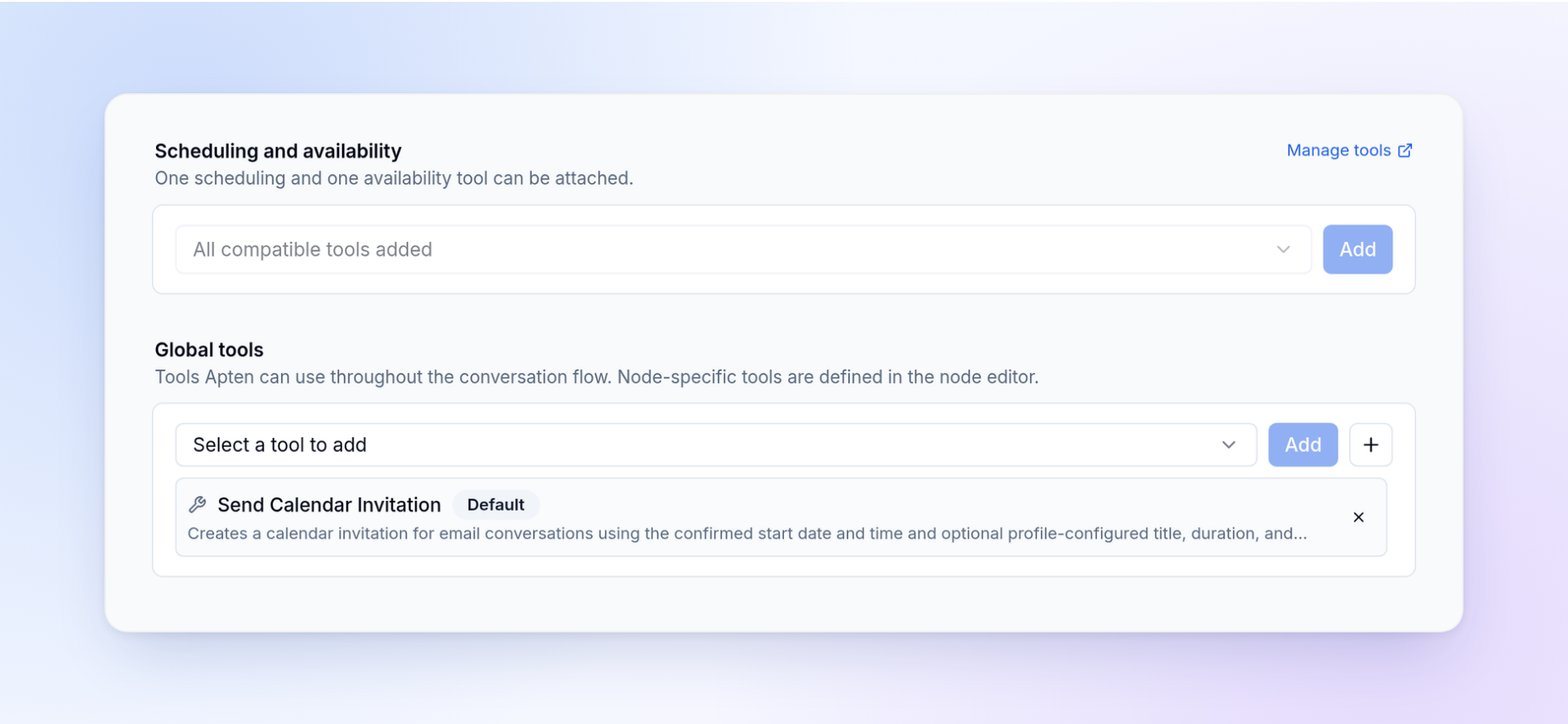
- In the Tools section, under Global tools, add Send Calendar Invitation
- Tell the AI when to send an invitation in the profile description or the relevant flowchart step (for example, “After the lead confirms a tour time, send them a calendar invitation.”)
- Deploy the profile
Apten only sends an invitation when the profile instructions or the lead’s
request call for one. A confirmed appointment on its own is not enough, so
include an instruction if you want invitations sent automatically.
Configure the Invitation
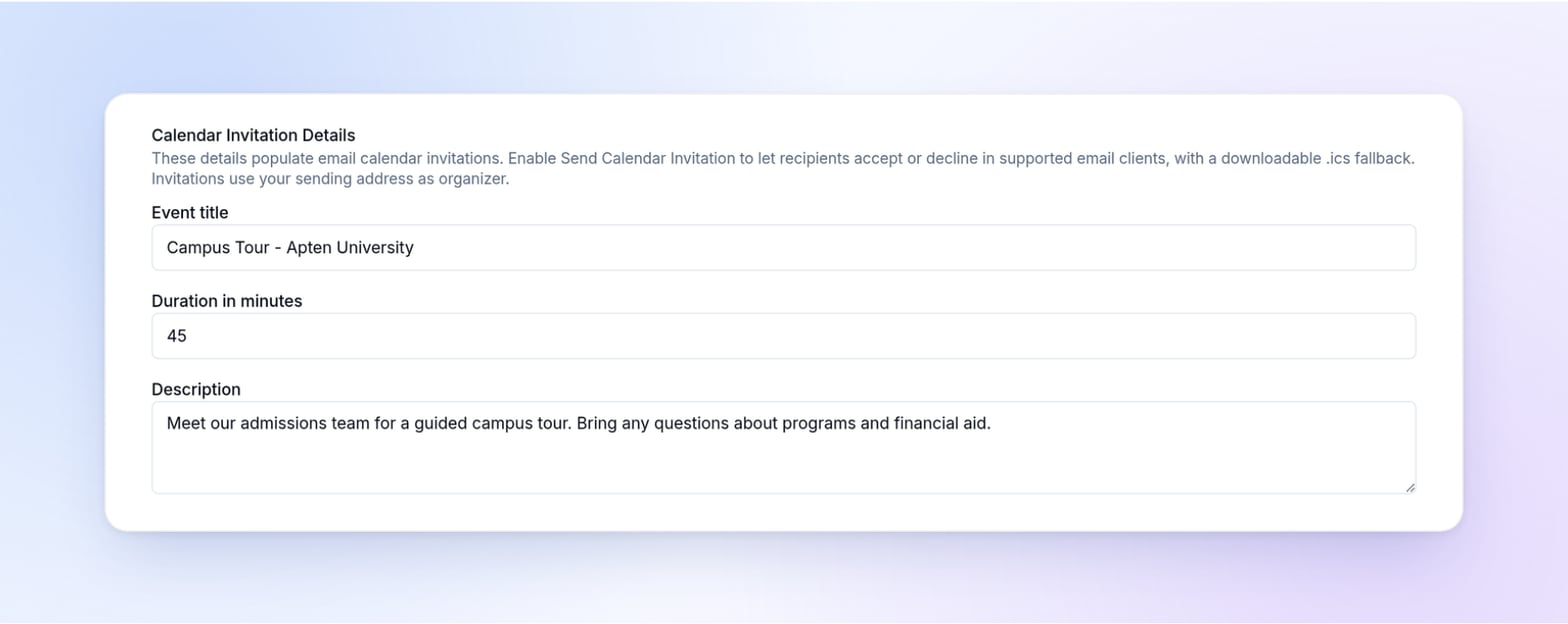
In the profile’s Email section, Calendar Invitation Details controls what the invitation contains:- Event title is optional. If left blank, the title is “Appointment - your company name”.
- Duration in minutes is optional. Without a duration, the invitation has a start time only.
- Description is optional text shown in the event body, such as what to bring or what to expect.
How It Works in Conversations
- Email conversations: once the lead confirms a date and time, Apten replies with the invitation attached in the same email.
- SMS conversations: if the lead confirms a time over text and has an email address on file, Apten can email the invitation and let them know it’s on the way.
- Dates and times in the email are spelled out in the lead’s time zone, so the weekday and date always match the invitation.
- Apten won’t resend an invitation for the same appointment when the lead simply replies “thanks.”
Limitations
- Invitations are sent by email only. They aren’t available in webchat conversations or during voice calls.
- Invitations are for a single, timed event. All-day events, recurring events, updates, and cancellations are not supported.
- Invitations don’t include a location or meeting link. Add those details to the Description if you need them.
- Sending an invitation does not book time on your team’s calendar, and RSVP responses are not tracked in Apten. Use a scheduling tool if you need to reserve availability.
Related
- Customer Profiles: profile description, flowchart, and settings
- Settings → Email: verified sending domains and sender addresses